
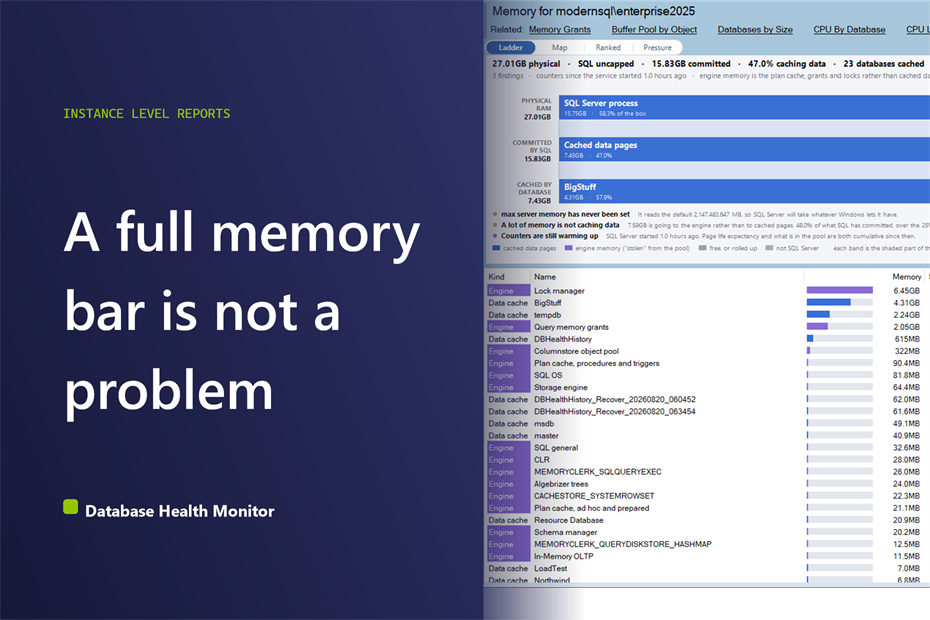
The CPU is bored, the disks have room, and yet the application stalls at the same time every morning. Somebody remotes onto the box, sees sqlservr.exe holding nearly all the RAM, and announces a memory leak. We have heard that sentence in shop after shop. SQL Server memory usage that high is usually the design working, and the real problem is somewhere Task Manager cannot see.
How do I check SQL Server memory usage and tell whether it is a problem? To see SQL Server memory usage properly, break it into three layers: what the machine has, what the SQL Server process holds, and what the buffer pool caches per database. Then check max server memory, memory left for Windows, page life expectancy and memory grants pending. A high total alone proves nothing.
This post covers the number everyone reaches for first, why it misleads, and what Database Health Monitor puts on screen in its place with the Memory report.
In this post
- The number everyone reaches for first
- What to measure instead
- SQL Server memory usage as three nested bands
- Six cards that say whether it hurts
- Who is holding the pool
- What it costs to look, and what can go wrong
- What to do with the answer
The number everyone reaches for first
Task Manager reports one figure for the process. Perfmon offers a few more. A dashboard somewhere shows a buffer cache hit ratio. Every one of them invites the same conclusion, and every one of them is a poor witness.
Start with the process total. SQL Server grows its memory on purpose. It caches data pages so queries do not wait on disk, and it keeps growing until something tells it to stop. A full bar means the cache is doing its job. An empty one would be the odd result.
The hit ratio is worse. Read-ahead pushes it to 99 percent and above on nearly every instance, sick or well. A number that cannot go down cannot warn you about anything.
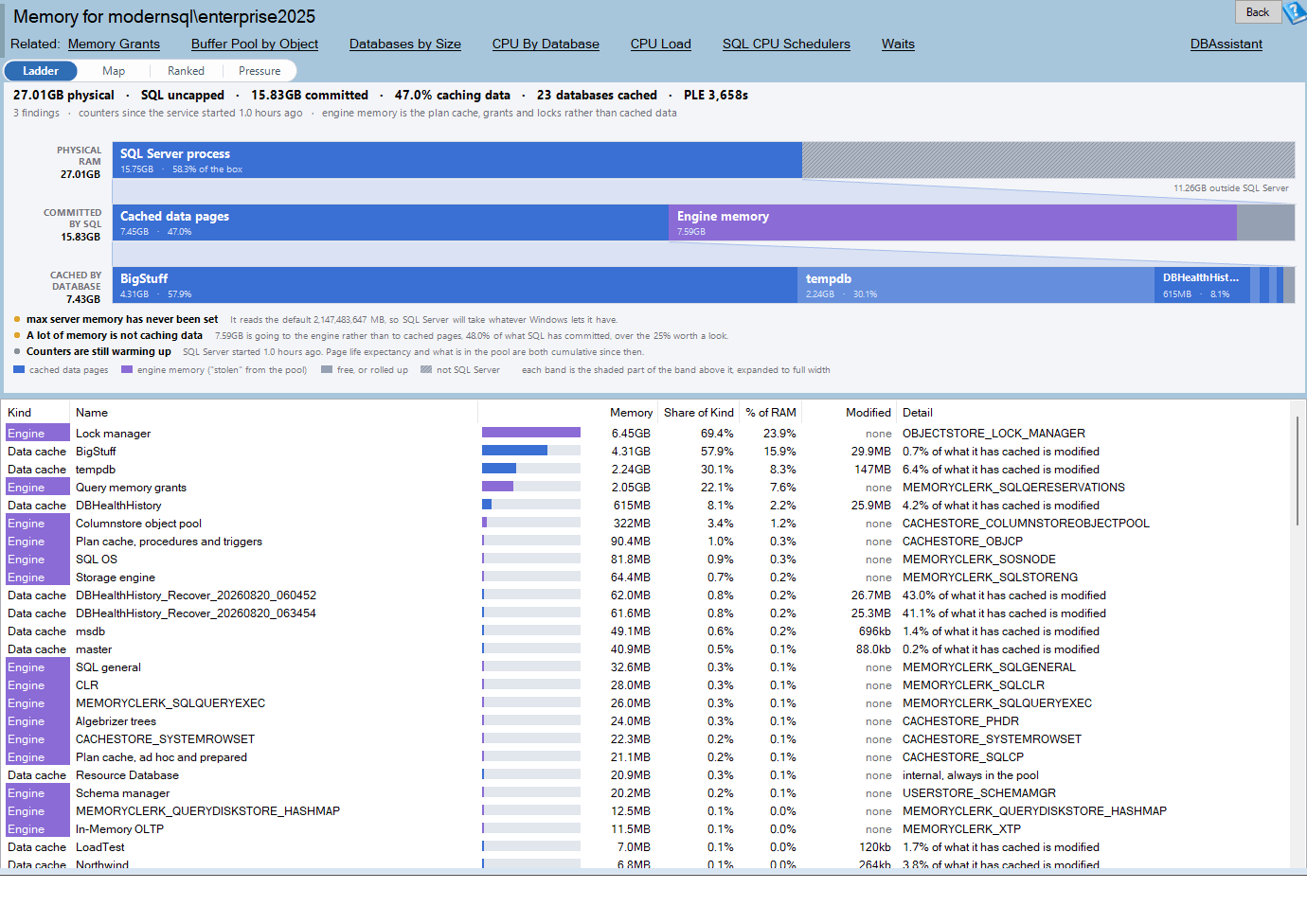
Memory is one of the reports in Database Health Monitor. It runs against your own servers, and it takes about a minute to have this same screen open on one of them.
Then there is the word stolen. Perfmon has a counter called Stolen Server Memory (KB), and people read it as an accusation. It is not one. The name comes from the buffer pool's point of view: the pool owns SQL Server's memory by default, so anything else that needs a page takes one from it. The plan cache, the lock manager and the optimizer all live there. The word tells you which allocation a page came out of. It does not tell you that anything is wrong.
So the argument goes in circles. The DBA says the memory is by design. The application owner says the server is slow. Both are right, and neither can prove it, because nobody has split the total into parts.
What to measure instead
Split it three ways, and keep each split nested inside the one above.
- The machine. How much physical RAM exists, and how much of it SQL Server holds. The rest belongs to Windows, other services and any second instance on the box.
- What SQL Server committed. Pages caching data, engine memory for everything else, and whatever is still free.
- What the cache holds, by database. Who is actually using the buffer pool.
On top of that sit four checks that decide whether the arrangement is healthy. We find that these four settle most of the arguments we walk into.
Max server memory. Left at its default of 2,147,483,647 MB, SQL Server will grow until Windows pushes back. On a machine that also runs an application, a backup agent and a monitoring service, that push is not graceful. This is the most common real finding.
What is left for Windows. Physical RAM minus what SQL Server is allowed to take. The floor in the report is 10 percent of the machine or 4 GB, whichever is larger. A thin sliver here is the same mistake as an unset limit, seen from the other direction.
Page life expectancy. How long a page survives in the cache before something pushes it out. The report measures it against 300 seconds for every 4 GB of cached data. That is a long-standing rule of thumb and a starting point, not a law. The trend matters more than any single reading. If you want the wider set of counters this one sits among, we covered them in SQL Server Overview: The DMVs Behind Every Number.
Memory grants pending. Queries queued for workspace memory before they can even start. Zero is the right answer. Anything above zero is the one unambiguous signal in this whole area.
SQL Server memory usage as three nested bands
The Memory report answers a single question: where did the memory go? It draws the answer as three bands on one byte scale, each band a breakdown of the one above.
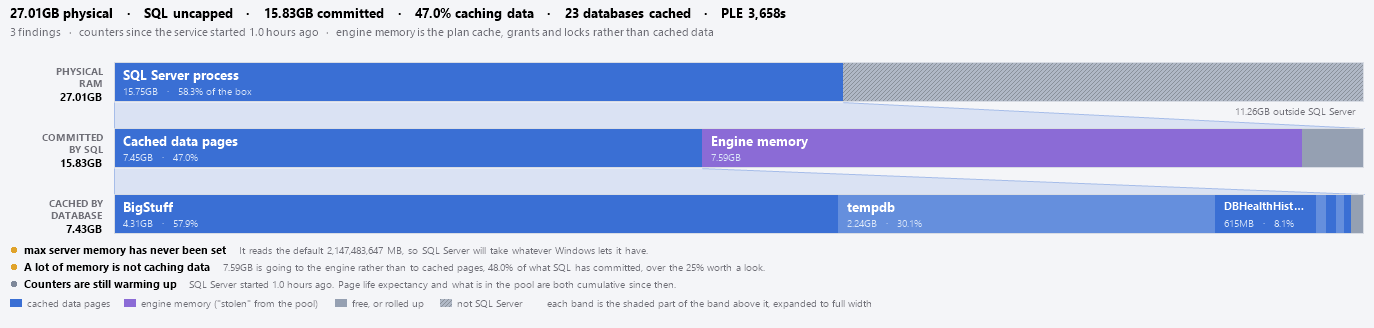
Row one is physical RAM. The solid part is what the SQL Server process holds. The hatched part is Windows, other services and any other instance. A dotted marker shows max server memory against the machine it constrains, so a limit that leaves too little room is visible at a glance.
Row two takes the solid part and splits it. Some of it is caching data. Some is engine memory, which covers the plan cache, query memory grants, the lock manager, the optimizer, the metadata caches, CLR and In-Memory OLTP. The rest is free. A wide violet band here means a lot of memory is doing something other than caching your data.
Row three takes the cached part and splits it by database. Because the bands nest, one database owning half the pool is a shape. You do not need to compare two figures in your head to see it.
Hover over any segment for what it holds and what share of the machine it represents. A click selects that database in the grid. A double click opens its Table Size report, which is where you find out what inside the database is being cached.
The three bands may not line up to the last byte. Rows two and three are sampled a moment apart on a server that keeps working while it is measured, so the bottom band is drawn against its own total. A gap at the end would mean nothing.
Six cards that say whether it hurts
The Pressure view turns the four checks, plus two more, into cards. Each shows its number, the test it was measured against, and a verdict.
| Card | What it tells you |
|---|---|
| Max server memory | The setting, or Not set when it is still the default |
| Left for Windows | RAM minus what SQL Server may take, against the larger of 10% or 4 GB |
| Page life expectancy | The counter against 300 seconds per 4 GB cached, with a 7 day sparkline when a history database exists |
| Memory grants pending | Queries queued for workspace memory, plus grant timeouts since startup |
| Engine memory | Memory not caching data, as a share of what is committed, and how much is plan cache |
| Lock Pages in Memory | Whether anything is locked, and how much cached data is exposed if not |
Two of these deserve a word. The engine memory card matters once it passes a quarter of committed memory. A large plan cache is very often single use ad hoc plans, and optimize for ad hoc workloads is the usual remedy. The Map view names which clerk is responsible, so you are not guessing.
Lock Pages in Memory is raised as a note above 32 GB of cached data, and only when nothing is currently locked. It stops Windows paging the buffer pool out. It also needs the privilege granted to the SQL Server service account, so it is a conversation with whoever owns the server, not a switch you flip.
Who is holding the pool

The grid has one row per consumer, largest first. A database appears as Data cache. A memory clerk appears as Engine, with its sys.dm_os_memory_clerks type in the detail column.
Two columns do the real work. Share of Kind gives a database's share of the buffer pool, or a clerk's share of engine memory. It is deliberately not a share of the two together, because a data page and a lock are not the same sort of thing. % of RAM is the one column that compares them, against the machine.
The Modified column is easy to skip and shouldn't be. It counts cached pages that have changed since they were read in, which a checkpoint still has to write out. A database with a large modified share is not just occupying memory. It is holding work the disks owe.
One database owning most of the pool is not automatically wrong. On a server that exists for one application it is exactly what you expect. On a shared instance it means the neighbors are being read from disk. Same picture, opposite verdicts, which is why the context matters.
On a consolidation server with two hundred databases, a treemap is slivers. The Ranked view lists every consumer biggest first, with bars scaled against the largest one, and it holds up when the Map does not. Sorting is by raw byte counts, so a grid never ranks 1.9GB below 1500MB. You would be surprised how often that happens elsewhere.
What it costs to look, and what can go wrong
Nearly everything on this page comes from counters that cost nothing. The exception is the per database split. sys.dm_os_buffer_descriptors returns one row per 8 KB page, so a 100 GB pool means thirteen million rows to walk. That walk is the whole wait on a big instance.
The report reads it last. Everything else is ready before the walk starts, so a scan that times out costs you the database rows and nothing more. Past 64 GB of cached data the scan is skipped by default and a Scan buffer pool button appears on the toolbar. The setting is called MemoryPoolScanLimitGb, and 0 means always walk the pool, however large.
The requirements are modest. It needs SQL Server 2012 or newer and a login with VIEW SERVER STATE. If the login cannot read sys.dm_os_process_memory, the top band falls back to what SQL Server has committed. If it cannot read the buffer descriptors, only the bottom band goes missing.
One message is not a problem at all. If the findings say counters are still warming up, SQL Server has been running for under four hours. Page life expectancy and every clerk reading are cumulative since startup, so they mean little yet. Come back later.
What to do with the answer
Start with the findings line. If it is empty, nothing about the settings or counters is worth acting on, and the bands are only information. Not every full server needs fixing.
If it is not empty, the order of attack is fairly short.
- Set
max server memoryif it was never touched. The Pressure card suggests a starting figure. - Treat memory grants pending above zero as urgent. Look for large sorts and hash joins, and for grants far bigger than the rows they process.
- Read low page life expectancy with a healthy pool as churn, not shortage. Something is reading more data than fits. The Missing Indexes and Problem Indexes reports come next, not a memory upgrade.
- Trim a bloated plan cache with
optimize for ad hoc workloadswhen single use plans are the cause.
That third step saves money. We have watched teams approve a hardware purchase to fix a page life expectancy that a handful of missing indexes would have repaired. RAM is cheap to buy and expensive to be wrong about, since a bigger pool simply gets churned by the same bad reads.
Memory pressure also rarely arrives alone. When it shows up, check what queries are waiting on: RESOURCE_SEMAPHORE and PAGEIOLATCH_* are the two families memory trouble leaves behind in the Waits report. The other half of the picture is the processor, which we cover in Why SQL Server CPU Pressure Isn't What Task Manager Shows. Memory and CPU stories get mixed up constantly, and reading both side by side saves a lot of wrong turns.
The full column reference, the data sources and the remaining questions are in the documentation for the Memory report. If you would rather have an experienced set of eyes on a server that keeps stalling, that is work we do, and the report is how we usually start.
What to check on your own server
- Check whether max server memory is still the default 2,147,483,647 MB on every instance you own
- Compare the memory left for Windows against a floor of 10% of RAM or 4 GB, whichever is larger
- Query memory grants pending and treat any value above zero as queries unable to start
- Compare page life expectancy with 300 seconds per 4 GB of cached data, then watch the trend
- Note how much of committed memory goes to the engine, and look for single use ad hoc plans if it passes a quarter
Try Database Health Monitor Today
The Memory report shows where a server's RAM went, layer by layer and database by database, and flags the settings and counters that signal real memory pressure. Database Health Monitor shows it on every instance you connect, in the time it takes to open the report.
Download Database Health Monitor and run the Memory report against your own server. There is nothing to configure first, and you will know inside a few minutes whether it tells you something you did not already know.
Related reading: Availability Group Lag: What a Failover Would Cost You. Explains how to read the send and redo queues as data loss and recovery time for every database on every secondary, so you know what a failover would really cost.