
Across the shops we work with, the same call arrives after a failover. The dashboard was green, every database said synchronized, and yet the application came back missing the last few minutes of orders, or sat unusable while the new primary chewed through a backlog. Healthy and caught up are different claims, and availability group lag is where they part ways.
How do I measure availability group lag in SQL Server? Availability group lag is the gap between the primary and each secondary, and it matters as two numbers: how much committed work a failover would lose, set by the send queue, and how long the survivor needs to catch up, set by the redo queue. Neither is a DMV column, so you derive them per database, per secondary.
Database Health Monitor 4 has an Availability Groups report built for exactly that gap. It shows how far behind every secondary is and whether a failover would succeed right now. We will take the problem first, then the screen.
In this post
- Why a green dashboard is not a failover plan
- Two queues, two promises
- Reading availability group lag, one lane per copy
- Numbers the report refuses to invent
- Would the failover actually work?
- Thresholds are the report's opinion
- What the patterns usually mean
Why a green dashboard is not a failover plan
The usual place to look is the Always On dashboard, or any panel that lists replicas, roles and synchronization health. That answers one question well: is it up? It is a fine thing to check on a quiet morning. It says almost nothing about how far behind a copy is, and that is the question people actually ask in the middle of an incident.
The cost of not knowing arrives in two forms. The first is lost work. Transactions the business believes were committed are simply not on the server that took over. The second is time. The surviving replica has to finish applying log before it can serve anybody, and during that window the application is down even though a healthy server is sitting right there. In recovery language these are your RPO and your RTO, and most teams have never seen either one measured on their own servers.
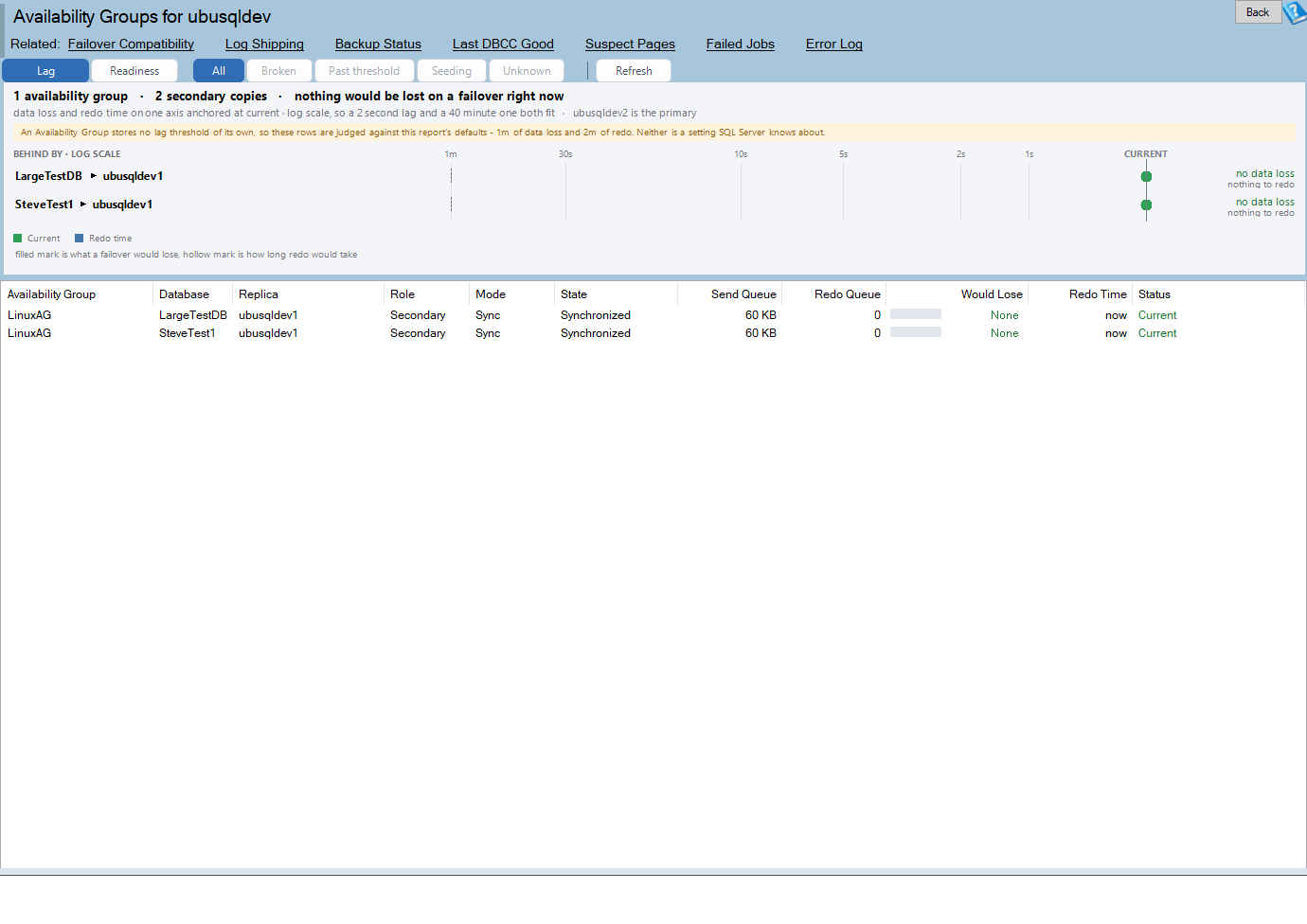
Availability Groups is one of the reports in Database Health Monitor. It runs against your own servers, and it takes about a minute to have this same screen open on one of them.
Two queues, two promises
An Availability Group is a two-stage pipeline, and it runs separately for each database on each secondary. Log records are hardened on the primary and sent across. Then they are hardened on the secondary and redone. A queue sits between those stages, and each queue maps to one of the two numbers you answer for.
- The send queue is log hardened on the primary but not yet sent. If you failed over right now, this is the committed work you would lose.
- The redo queue is log the secondary has received but not yet applied. This decides how long the survivor spends catching up before it can serve.
Here is the awkward part. Neither number is a column in any DMV. sys.dm_hadr_database_replica_states gives you queue sizes in KB, rates and timestamps, and you have to turn those into seconds of exposure yourself. A raw queue of 80,000 KB means something very different on a fast link than on a slow one.
The grain matters too. A group with twenty databases and two secondaries produces forty independent answers. Any one of them can be the reason a failover turns messy, and a single summary row per replica will hide it. Averages are comforting. They are also how the one database with a runaway bulk load gets missed.
Reading availability group lag, one lane per copy
In the lag view, each database on each secondary gets its own lane under a heading called BEHIND BY. Every lane carries both numbers, what would be lost and how long redo would take. The scale is logarithmic and anchored at current, which sounds fussy until you see why. A copy two seconds behind and a copy forty minutes behind both have to fit on one picture, and on a linear axis one of them vanishes.

Each lane is colored by a band, and the bands are chosen to keep red meaningful:
- Current means caught up, with nothing to lose.
- Behind means behind, but inside the thresholds.
- Past threshold means over the data loss or redo limit the report judges by.
- Broken means data movement has stopped. That is not a slow copy. It is a dead one.
- Seeding means automatic seeding is still running. The copy is behind on purpose, and only for now.
- Unknown means the copy cannot be measured from where you are connected.
Seeding earns its own band deliberately. A replica being seeded is supposed to be behind. Painting it red would teach people to ignore red, and that habit is expensive the one time red is real.
Underneath sits the grid. Send Queue and Redo Queue are the raw pipeline in KB. Would Lose and Redo Time are the two derived numbers, and they are the ones to put in front of a manager. The Status column spells out the band in words.

One small detail we like: database names come from sys.dm_hadr_database_replica_cluster_states, not from DB_NAME(). These rows describe databases on other replicas, and DB_NAME() looks ids up in the local catalog. On a group whose replicas were built in a different order, it returns a name that is wrong and perfectly confident.
Numbers the report refuses to invent
Good monitoring knows when to say nothing. Three cases show it.
A synchronous replica that is SYNCHRONIZED shows zero data loss. It could have derived a figure from two last_commit_time stamps, but the subtraction yields a fraction of a second of clock noise. A page reporting four hundred milliseconds of exposure on a synchronous copy teaches readers to distrust the column.
A stalled redo thread has no recovery estimate, and that absence is the finding. Divide work by a rate of zero and you get infinity, which sorts nicely and means nothing. Instead, the report names the row as stalled and sorts it to the top with the worst rows. A redo queue holding work with a redo rate of zero is worse than a large estimate, because a large estimate at least ends.
On a secondary, the queues are unknown, not zero. The send queue is the primary's view of the world. Rows exist on a secondary, but what they say about log not yet delivered to its siblings is not the secondary's to report. So the page marks those queues unknown, names the primary, and tells you where to connect. It does not quietly open a second connection to the primary on your behalf. Reassuring zeros from the wrong vantage point are a familiar trap, and we covered a cousin of it in Why SQL Server CPU Pressure Isn't What Task Manager Shows.
Would the failover actually work?
Lag tells you what a failover would cost. It does not tell you whether the failover would happen. That is the readiness view, one row per replica, asking the question you should be asking before patching night rather than during an outage.
It is drawn as a matrix with one column per check: connected, operational, data movement, databases synchronized, failover ready, failover mode, cluster quorum, required synchronized secondaries, session timeout, listener, read-only routing and automatic page repair. Each cell comes back Ready, Check, Not ready or Unknown. The layout is deliberate. A column of failures under one check reads as a single cause. Scanned across a row, the same failures look like four unrelated coincidences.
Two checks deserve special attention.
- Required synchronized secondaries is the one that surprises people. If the group demands more synchronous secondaries than are currently caught up, the primary stops accepting commits. Someone set that once, years ago, and forgot it. The result is an outage with nothing obviously down and nothing failing over.
- Automatic page repair counts pages quietly repaired from another replica. A count above zero means corruption was found and papered over. It hides the problem rather than fixing its cause, so run
DBCC CHECKDBon both ends.
Thresholds are the report's opinion
Log shipping stores a threshold the DBA chose for each database, so a report can judge every leg against its own promise. An Availability Group stores nothing like that. No setting in SQL Server says how far behind a secondary is allowed to be.
So the report brings its own defaults and says so in a notice line on any page judged by them.
| Threshold | Default | Setting |
|---|---|---|
| Data loss | 60 seconds | AgRpoThresholdSeconds |
| Redo time | 120 seconds | AgRtoThresholdSeconds |
Both live in the settings file, so a shop with a thirty second recovery objective is not told it is fine at fifty. Override them and the notice line disappears, because the numbers are now yours. This is the conversation we most often have with clients: nobody has written down how much loss is acceptable. Until somebody does, every threshold on every monitoring page is a guess, and you may as well make it a deliberate one.
What the patterns usually mean
Once you can see lag per copy, the shapes repeat. These are the ones worth recognizing.
| What you see | What it usually means |
|---|---|
| One database Past threshold, the rest Current | Not the network and not the replica. Something specific to that database, often a large index rebuild or bulk load generating log faster than it can be sent. |
| Every database on one replica behind | That replica or the path to it. Check the network and the replica's disk. |
| Data movement suspended on one copy | Someone suspended it, or SQL Server did after an error. It will not catch up on its own, and the send queue grows until the primary's log cannot truncate. |
| Redo queue with work and a rate of zero | Redo is not running. There is no estimate because there is no progress. |
| Required synchronized secondaries failing | The primary may already be refusing commits. |
The suspended-copy case is the nastiest, because it feels fine for days. Nothing fails. The log just keeps growing on the primary, and the first symptom may be a full disk. The Disk Space report is the natural next stop there, and the Waits report will show HADR_* waits if synchronous commit is what slows the primary.
A few practical notes before you point this at production. It needs SQL Server 2012 or newer, Always On enabled on the instance, and VIEW SERVER STATE. When any of those is missing it says which, rather than failing. There is no auto-refresh, since a page requerying six DMVs on a timer would cost the primary more than it saved, so Refresh is a button. Nothing is stored, which means no history. And nothing on the page changes anything. Even the resume data movement statement is handed over as text to run somewhere you can watch it.
The Availability Groups documentation has the full reference for every column and message. If you would rather have somebody read the numbers with you, a failover rehearsal on a Tuesday afternoon is a much cheaper place to learn than an outage on a Saturday night.
What to check on your own server
- Connect to the primary replica before reading any send or redo queue, because a secondary cannot report them
- Write down the seconds of data loss and redo time your business accepts, then compare them with the 60 and 120 second defaults
- Look for copies where data movement is stopped before you look at copies that are merely slow
- Check every row whose redo queue holds work while the redo rate is zero, since redo is not running
- Read down the readiness columns before your next planned failover, and treat a failing column as one cause
Try Database Health Monitor Today
The Always On dashboard says whether a group is healthy but not how far behind each secondary is, and this report shows what a failover would lose and how long redo would take. Database Health Monitor shows it on every instance you connect, in the time it takes to open the report.
Download Database Health Monitor and run the Availability Groups report against your own server. There is nothing to configure first, and you will know inside a few minutes whether it tells you something you did not already know.