
Across many client servers we keep seeing the same complaint. A report that returns in a blink at seven in the morning crawls at ten, and by the time anyone opens a session to look, the problem has gone quiet again. Someone runs the query on a test box and it flies. Someone else pulls the plan and sees nothing wrong. A SQL Server query slow when busy is maddening because the evidence leaves the room before you can examine it.
Why is my SQL Server query slow when busy but fast at night? A SQL Server query slow when busy is either slow on its own or slow because of what else is running. Compare each query in the quietest third of Query Store intervals with the busiest third. If only the busy reading is slow, look for waiting and contention rather than tuning the plan.
Database Health Monitor has a report built for exactly this situation, and we will get to it. First, the reason the usual approach goes wrong.
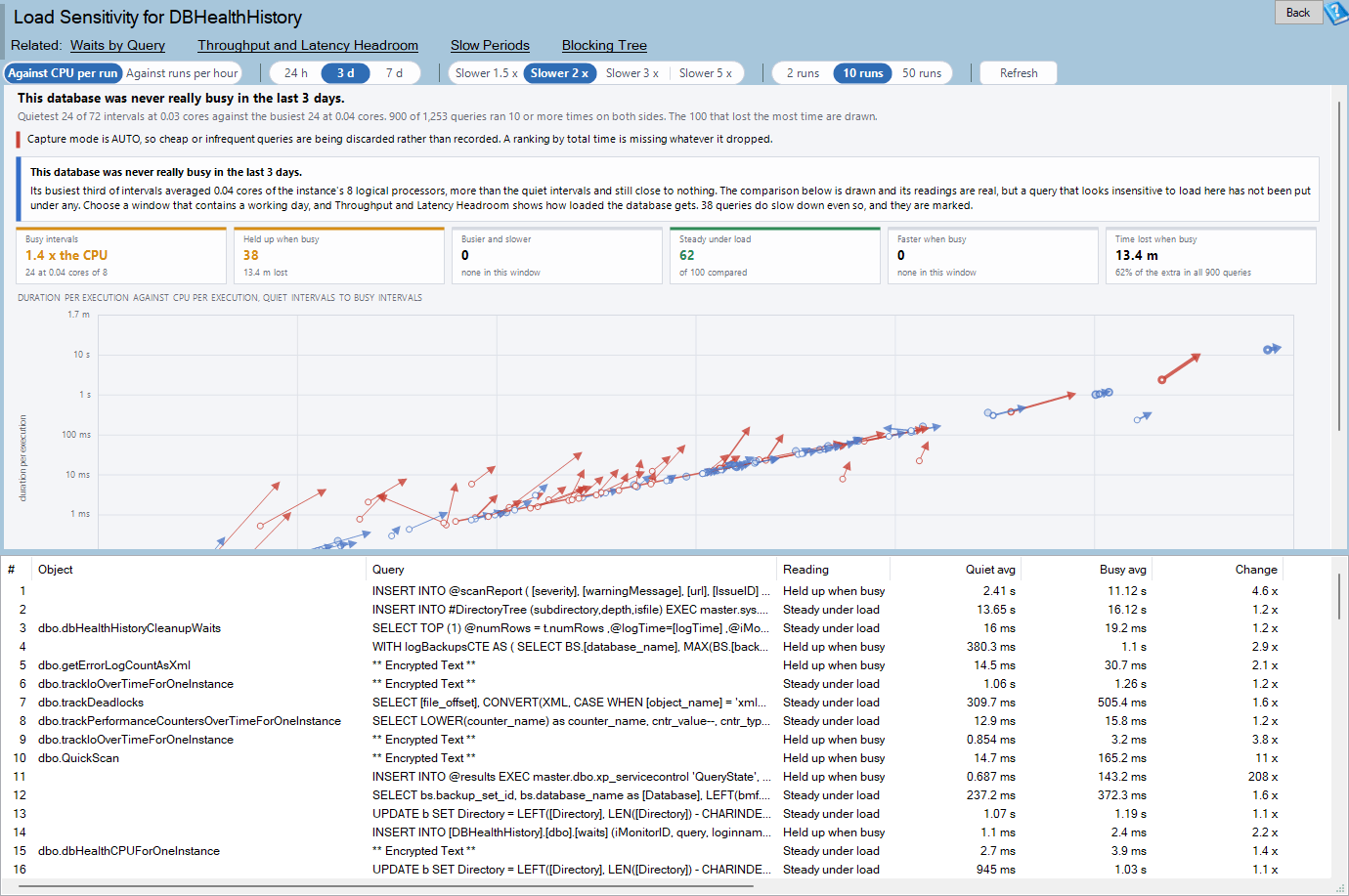
Load Sensitivity is one of the reports in Database Health Monitor. It runs against your own servers, and it takes about a minute to have this same screen open on one of them.
In this post
- Why a SQL Server query slow when busy fools a slowest-first list
- Measure the query against itself
- What the Load Sensitivity report puts on screen
- Four readings and what each one asks of you
- Reading the grid to find what is holding a query up
- Why the numbers can be trusted, and where they stop
- Turning the answer into a decision
Why a SQL Server query slow when busy fools a slowest-first list
The first move for most teams is to sort queries by duration and start at the top. It feels sensible. It is also a trap, because a ranked list measures every query against every other query and says nothing about why a given query is slow.
Think about two queries sitting side by side in that list. One takes two seconds whether the server is idle or on fire. Its cost is baked in: a scan where a seek should be, a missing index, a join that touches far too many rows. The other takes four milliseconds at three in the morning and two seconds at nine. Same total, same rank, completely different disease.
Tune the second one and you will burn a week. You can rewrite it, hint it, index it, and the plan will look lovely. It will still stall at nine, because the plan was never the problem. The query is queuing behind something. Locks, memory grants, log writes, a CPU that has no spare cycles. Those are different jobs for different people, and a duration ranking cannot send you to the right one.
Measure the query against itself
The honest comparison is a query against its own past, under two different conditions. If it behaves the same way when the database is idle and when it is struggling, the cause lives inside the query. If it changes character as the load climbs, the cause lives outside it.
Query Store already holds what you need. It records runtime statistics in fixed intervals, so you can ask which intervals were quiet and which were busy, then look at one query in each. The catch is defining busy. The clock is a poor guide. Many shops have a nightly batch that is the heaviest thing the server does, and on those systems the busy hours are the small hours.
So busy has to mean work done. The report measures CPU seconds per second across every execution in an interval, then ranks the intervals by that figure. Using a rate rather than a raw total matters. Interval length can change on a live database, and a plain sum would file every short interval under quiet.
It then cuts the ranked intervals into thirds and sets the middle one aside. That choice looks odd until you consider what sits around the median. Intervals on either side of it are nearly identical, so including them would dilute the comparison with pairs that barely differ. Quiet third against busy third gives two readings that are truly unlike.
What the Load Sensitivity report puts on screen
The page is called Load Sensitivity, and you find it in the tree under a database, at Real Time, Query Store, Load Sensitivity. It needs SQL Server 2017 or newer, because per query wait statistics arrived in sys.query_store_wait_stats with that release. On 2016 you get a message instead of a chart. The full reference for the report lists every control if you want the detail.
Every query is drawn as an arrow. A hollow circle marks where it sat in the quiet third, and the arrowhead marks where it landed in the busy third. The direction is the finding, so you read the picture before you read any number.
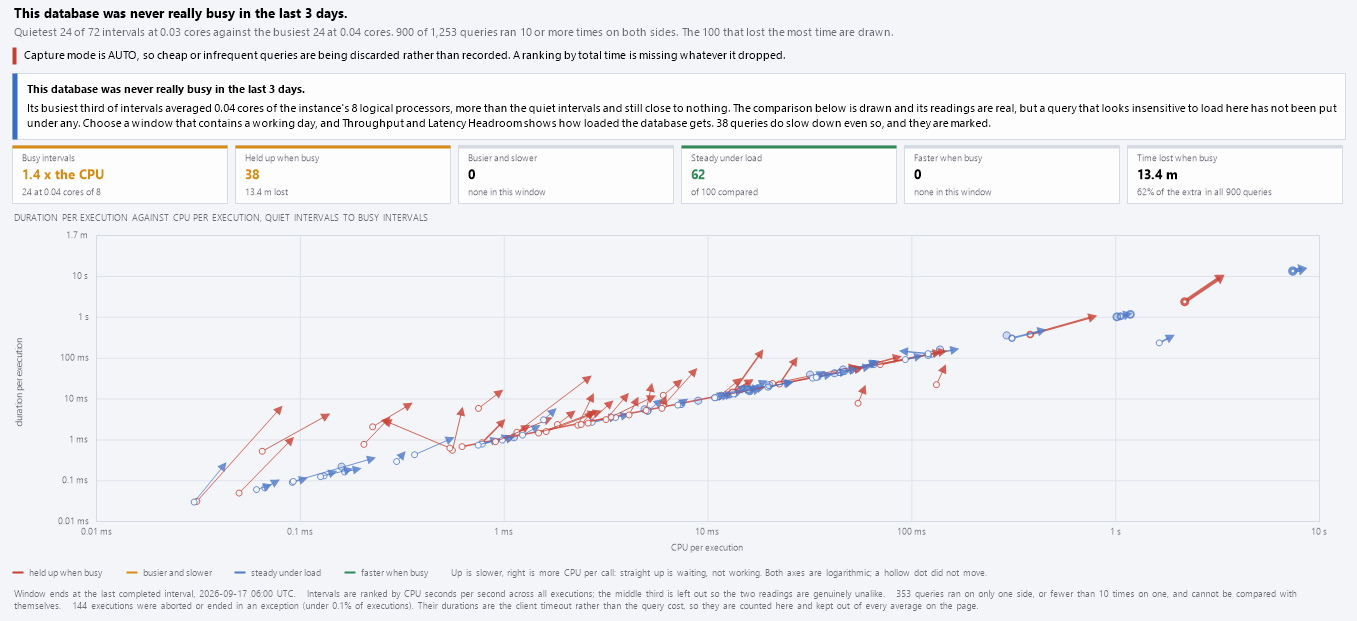
By default the horizontal axis is CPU per execution and the vertical axis is duration per execution. An arrow that points straight up did the same amount of work and simply took longer. That is waiting. An arrow that leans up and to the right did more work per call, which points toward a plan or parameter values and away from contention.
Both axes are logarithmic. That means the length of an arrow is the multiple the query moved by. A query that doubled looks the same whether it went from one millisecond to two or from a minute to two minutes, so small fast queries are not drowned out by large slow ones. Thickness shows how much time the busy intervals spent on the query, which pulls the heavy carriers of the load to the front.
Above the chart sits a one line verdict and a row of tiles. The verdict is careful about its own limits. If the busy third used less than 1.25 times the CPU of the quiet third, or used under a twentieth of the instance's processors, it says the database was never really busy. That matters more than it sounds. A query that looks unaffected by load has told you nothing if it was never put under any.
Four readings and what each one asks of you
Each query lands in one of four colors. Red means held up when busy. Amber means busier and slower. Blue means steady. Green means faster when busy. A change smaller than a millisecond per execution never counts, whatever the multiple says.
| Reading | What happened | Where to look next |
|---|---|---|
| Held up when busy (red) | Slower by your chosen multiple while running about as often as before | Locks, memory, log writes or CPU contention |
| Busier and slower (amber) | Slower, and called at least twice as often | Cut the number of calls or make each one cheaper |
| Steady under load (blue) | Did not move | Nothing here, it ignores the crowd |
| Faster when busy (green) | Quicker in the busy third | Often a cache warm by day and cold at night |
The red group is the one that justifies the report. These are the queries that look guilty in a ranked list and are not. Tuning their plans is close to wasted effort. The question to ask is what they queue behind, and the grid has a column that answers it.
Amber queries are different. They are slow under load and they also run far more often, so they are part of the load that is slowing them. Here the fix is on the caller's side: fewer round trips, a cached result, a cheaper statement.
Green deserves a second look rather than a cheer. When a query gets faster as the server gets busier, the usual explanation is a warm cache in the daytime and a cold one at night. It is a reminder that the quiet reading is not always the clean one.
Reading the grid to find what is holding a query up

The grid lists up to 100 queries, ordered by the extra time the busy intervals lost to them. Quiet average and busy average sit next to each other, with a Change column showing the busy figure as a multiple of the quiet one. Executions per hour for each third come next. If the rate barely moved while the duration doubled, you are looking at a real stall.
The column we reach for first is Wait grew. It names the wait category whose time per execution rose most between the quiet and busy readings. A lock category growing points you at blocking. A memory category growing points at grants. CPU growing says the query is competing for scheduler time. That single word often turns a vague complaint into a short list of suspects.
Wait capture has to be on for those columns to fill. When WAIT_STATS_CAPTURE_MODE is off, the page still classifies queries using CPU, but the wait detail is empty. A toolbar button switches capture on when it is off. Idle, tracing and user wait categories are left out so they do not bury the real signal.
Right click a row for Explain this reading, which lays both readings side by side and shows where the extra time went. From the same menu you can jump to Waits by Query for the whole window. If you have not met that report, our post on SQL Server Waits by Query: Find What's Actually Slow covers it. The Plans column matters too. More than one plan across the two thirds is a cue to check Plan Regressions before you blame contention.
Why the numbers can be trusted, and where they stop
A few design decisions are worth knowing, because they explain why this report disagrees with a quick query you might have written yourself.
- The window ends at the last completed interval. The interval still filling has partial counts and would be mistaken for a quiet one.
- Only regular executions feed a reading. Aborted and failed runs still count toward how busy an interval was, and the footer reports them.
- Each reading is total time over total executions in that third. It is never an average of averages, which would let a rare run distort a common one.
- A query must run a minimum number of times in both thirds, set on the toolbar at 2, 10 or 50. The footer tells you how many could not be compared.
Some honest limits follow. The window needs at least six completed intervals with work in them, or the page tells you there is not enough to compare. If the whole window was calm, you will see the never really busy message, and the fix is to choose a window that includes a working day. Queries that slow down anyway are still marked.
There is also a subtle case. A query can be marked held up when busy while its CPU per run grew too. The reading is decided by duration and rate. When CPU grew about as much as duration, the query is doing more work per call, and a plan or parameter change is the better lead than contention. The explanation text spells out which one you have.
If your complaint is tied to a time of day rather than a level of load, our post on Which Hour of the Day Is Slower Than It Used to Be? approaches the same history from the clock. The two views complement each other.
Turning the answer into a decision
This is where the report earns its keep. Without it, a team debates for days whether to add an index or chase blocking, and often does both. With it, the first conversation becomes short. Is the query red, amber, blue or green? Which wait grew? Did it use more than one plan?
Think about what a wrong guess costs. A developer spends a week rewriting a statement that was never the problem, the release carries risk, and the stall at nine o'clock is still there on Monday. Sending the right person to the right problem is worth far more than the report costs to open.
A practical routine looks like this. Start with the verdict, because it tells you whether the window was a fair test. Click the red tile to filter the grid. Read Wait grew down the column and look for a pattern, since one lock wait repeated across ten queries usually means one blocker. Then sort out the amber queries separately, because their cure is on the calling side.
If you want a second pair of eyes on a server where this pattern is already costing you sleep, that is work we do every week. Bring the red arrows and we can usually name the blocker quickly.
What to check on your own server
- Confirm Query Store is on for the database and that the window you plan to examine contains a working day
- Turn on wait statistics capture if it is off, so the wait columns have something to show
- Pick a window of 24 hours, 3 days or 7 days that includes your busiest period
- Open the queries marked Held up when busy first and check which wait category grew most
- Send any query that also used more than one plan to a plan regression check before blaming contention
Try Database Health Monitor Today
Load Sensitivity compares every query against itself in quiet and busy Query Store intervals, so you know whether to tune the plan or hunt for what it waits behind. Database Health Monitor shows it on every instance you connect, in the time it takes to open the report.
Download Database Health Monitor and run the Load Sensitivity report against your own server. There is nothing to configure first, and you will know inside a few minutes whether it tells you something you did not already know.
Related reading: SSRS Shared Dataset Report: What to Read First. A walkthrough of the SSRS Shared Datasets screen that explains what to read first, how to tell a dead dataset from a risky one, and how to find reports that are already broken.
Related reading: Master Database Size: Read This Row Before the Megabytes. This walkthrough shows how to read the master Footprint page in order, starting with the one row that tells you whether a large master is holding somebody's data.