
Across the client servers we review, master gets the same treatment almost everywhere. Nobody opens it for years. Then a volume alert or a rebuild plan makes somebody ask about master database size, and the person asking finds they have no baseline to compare against. Database Health Monitor has a page for exactly that moment, called master Footprint. The most useful thing on it is not the biggest number on screen. Look at the object count first.
How do I tell whether my master database size is normal in SQL Server? An untouched master is a few megabytes, so judge master database size by what is inside the files, not by the file size. Check the count of objects setup did not create, then compare used space against free space and growth room in the data file and the log. Around a hundred megabytes usually means user objects.
In this post
- The question the page is opened to answer
- Start with the row almost nobody scrolls to
- Reading the two bars as three parts each
- The grid, in the order we read it
- Two rows that cannot change and still matter
- When a row is missing, check the version first
- Where the drill down leads
The question the page is opened to answer
Most size questions about master are really two questions wearing one coat. The first is how much is in there. The second is whether that amount is a property of the engine or a decision somebody made.
The distinction has a price. If the engine accounts for the size, there is nothing to do and no reason to spend an afternoon on it. If a person accounts for it, then master has quietly become a place where application data lives, and that data sits in the one database nobody thinks to include in the backup conversation. We have watched that discovery arrive at the worst possible time, in the middle of a rebuild, when the cheapest moment to learn it passed months earlier.
So the page is built to answer both questions in one screen. A setup that nobody has touched leaves master at a few megabytes. Something near a hundred megabytes is holding somebody's data. Between those two statements sits the work this post is about.
master Footprint is one of the reports in Database Health Monitor. It runs against your own servers, and it takes about a minute to have this same screen open on one of them.
Start with the row almost nobody scrolls to
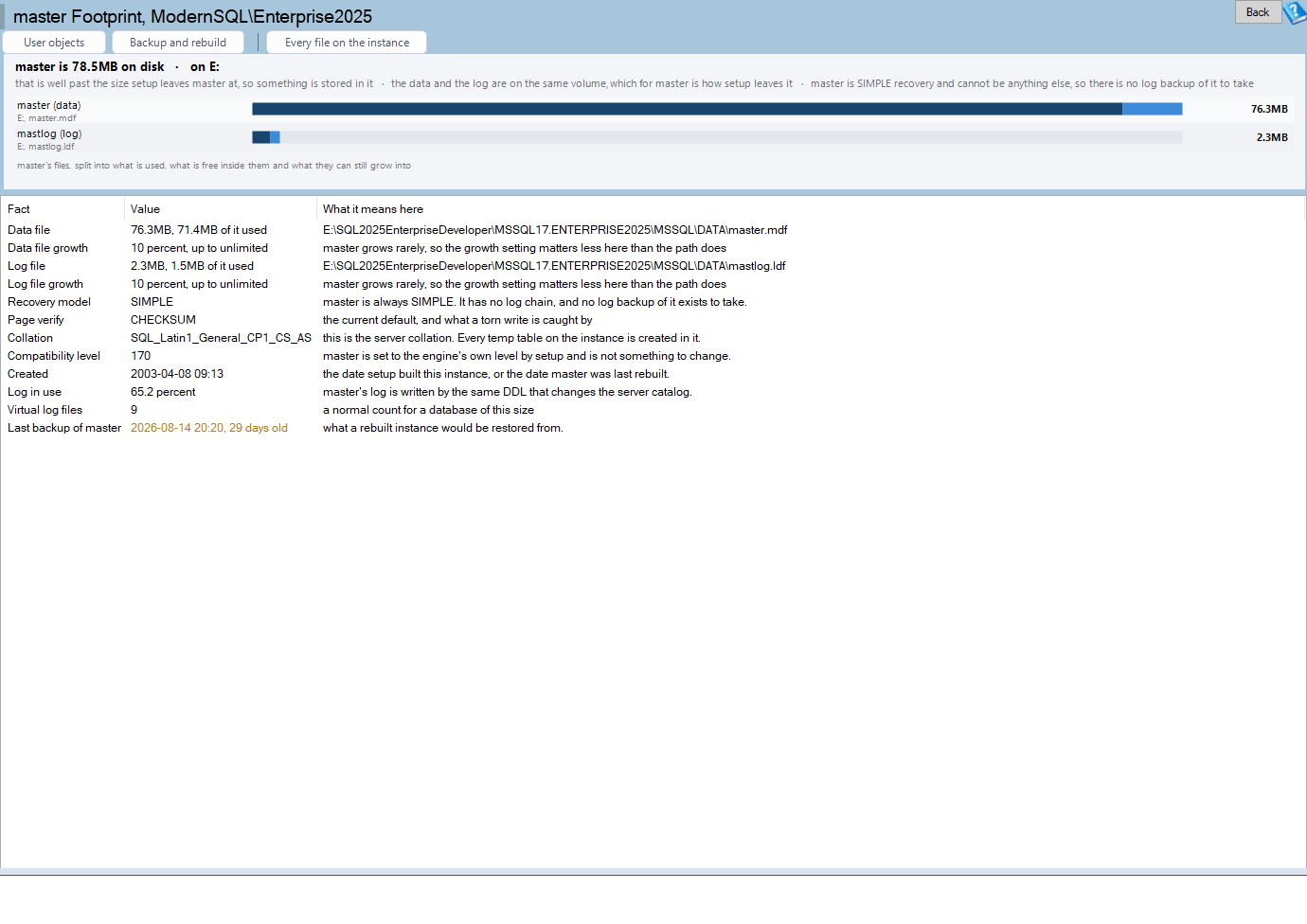
On a screen like this one the eye goes straight to the size. In the example above, 78.5MB on E: is the largest and most colorful thing there, so that is where attention lands. It is also the least informative figure on the page.
A size is a total. It cannot tell you whether the contents are legitimate. A master of 78.5MB could be mostly free space inside a file that was grown once and never shrunk, or it could be nearly full of objects that arrived after setup finished. Same number, opposite meanings, and different actions.
The row that separates them is the count of objects setup did not create. Under the hood it counts rows in sys.objects inside master where is_ms_shipped = 0. Every object the product installed is excluded, so what remains is what a person or a deployment script added.
- Zero means whatever size you are looking at belongs to the engine. Note it and move on.
- Anything above zero means master is holding somebody's work, and the size question has become an ownership question.
That is why we read this row first. It turns an ambiguous measurement into a yes or a no, and it does so before you have spent any attention on charts.
Reading the two bars as three parts each
With the object count in hand, the bars become interpretable. There is one bar per file, the data file and the log, and each is split into three regions: what is used, what is free inside the file, and what the file is still allowed to grow into.

The detail that trips people is the figure on the right. It is the size of the file, so a file with almost nothing in it still shows a large number there. Judge fullness by the dark region and ignore the label.
You will also notice that master keeps its data file and its log on one volume. For a user database we would call that a finding, and the File Map page does treat it as one. For master it is simply how setup leaves things, so the header line states it as a fact rather than raising an alarm. A reader who knows that does not waste time trying to fix it.
What a healthy pair of bars looks like
Small, mostly free, and boring. The dark region is a sliver, the free region is most of the file, and the growth region is modest. An object count of zero alongside that picture is the reading you want. Nothing here needs a ticket.
What a pair that needs attention looks like
A dark region that fills most of the data file, and an object count above zero. Those two together say that master is both busy and populated by non-system objects. Growth room that sits on a volume with little space left makes the case more urgent, and the Disk Space page is where you check what remains on the drive.
The bars are also a menu. A click selects that file's Data file or Log file row in the grid. A double click selects the row and opens master User Objects. A right click offers Copy this value, What is installed in master and Backup and rebuild readiness, and a right click on an empty patch of chart copies the whole chart to the clipboard, which is handy for the email to whoever owns the volume.
The grid, in the order we read it

The grid has three columns: Fact, Value and What it means here. The third is the one that saves time. It is a sentence written for master rather than a generic description of the property, so you are not left translating a database setting into a system database context.
The rows themselves cover file sizes and paths, used and free space, recovery model, server collation, compatibility level, VLF count and log space where the build supports them, the last backup, and the object count we started with. Our reading order, once the object count is done, looks like this.
| Row | Why it comes at this point | What makes us act |
|---|---|---|
| Used and free space | It tells you how full each file really is, which the file size cannot | A data file that is mostly used |
| Data and log file sizes and paths | Size and location matter only once you know the fullness | Growth room on a volume that is nearly out of space |
| Server collation | It is the instance's value, so it is the baseline for every other database | User databases that disagree and nobody can say why |
| VLF count and log space | Log detail is worth a look once the basics are settled | A count you cannot explain, on a build that supports it |
| Last backup | It closes the loop on whether a populated master is protected | Nothing recent, with an object count above zero |
Compatibility level and recovery model are in the grid too. Neither is something you decide for master, but a page that prints them saves a trip to a query window.
Two rows that cannot change and still matter
It seems odd to print a fact that has only one possible value. We do it because the people reading this page are usually mid-incident, and a settled fact is one less thing to second guess.
master is always SIMPLE recovery. It cannot be changed. There is no log chain and therefore no log backup, so every panel about log backups that you see elsewhere in the product is absent on this page, not empty. If you came looking for one and did not find it, nothing is broken. We have seen people open a ticket to ask where the log backup history went. It was never going to be there.
master defines the server collation. The value in the grid is the instance's, not a choice master made for itself. That makes it the baseline against which every other database is measured. A database that differs from it does so on purpose or by accident, and the accidental ones are the kind that surface later as a comparison error between a user table and a temporary table. The Failover Compatibility report lists which databases disagree, which is the natural next stop after reading this row.
When a row is missing, check the version first
Two rows depend on the build. sys.dm_db_log_space_usage arrived in SQL Server 2012 and gives the log space figures. sys.dm_db_log_info arrived in SQL Server 2016 SP2 and gives the VLF count.
The reason this matters is how SQL Server treats a name it does not recognize. Naming either view on an older build fails the entire batch at compile time, not only the one statement. A TRY block around it does not help, because the failure happens before the batch runs at all. So the report assembles its query from the server version first and leaves the unsupported pieces out.
On an older instance those rows are absent, with a note that says why. A missing VLF count is a statement about the build, not about the health of the log. Read the note and carry on.
Where the drill down leads
The toolbar has three buttons, and which one you want depends on what the first two minutes told you.
- User objects opens master User Objects. If the object count was above zero, this is the next page, because it names what is there. A large master is usually exactly this.
- Backup and rebuild opens master Backup and Rebuild Readiness. It answers whether what is in master is protected, and for a populated master that is the question with the most business risk attached.
- Every file on the instance opens master File Map. Use it when the concern is the volume rather than master alone.
The order is deliberate. Whose data it is comes before whether it is backed up, because you cannot judge the risk of something you have not identified. And both come before the instance-wide view, because widening the scope too early is how a ten minute check becomes a day.
The same discipline applies to any database whose size has started to look wrong, not just master. We wrote about it for a very different case in What's Really Driving Your ReportServer Database Size, where the question is again what is filling the files rather than how big they are.
Most of the time, the answer on master is quiet. A few megabytes, an object count of zero, a collation you can name. When it is not quiet, the page tells you which of the two stories you are in before you have opened a second screen. The full reference for every row and control is in the master Footprint documentation.
What to check on your own server
- Read the count of objects setup did not create in the master grid before looking at any size
- Compare used space with free space and growth room for the data file and the log, not the file size alone
- Compare the server collation row with the collation of each user database and decide which differences are deliberate
- Check the last backup row for master and confirm it is a backup a rebuilt instance could be restored from
- Open master User Objects when the object count is above zero and name whoever owns each object
Try Database Health Monitor Today
The master Footprint report shows what is actually inside a large master, so a growing system database stops being a guess. Database Health Monitor shows it on every instance you connect, in the time it takes to open the report.
Download Database Health Monitor and run the master Footprint report against your own server. There is nothing to configure first, and you will know inside a few minutes whether it tells you something you did not already know.