A database in the tree stops answering, and every report that used to describe it goes blank. It says offline, or restoring, or recovery pending, or worse, suspect, and there is no way to open a query window against it and ask what its files look like. That is the moment somebody opens the master File Map. The question it answers is not how big the database is; it's simpler and more useful than that: where do this database's files actually live, what are they set to do when they grow, and can you still see any of that when the database itself won't open? Database Health Monitor built this report to keep answering that question about offline database files the same way it answers it for a healthy one, because the view behind it doesn't care whether the database is reachable. The first column worth your attention here isn't Size. It's State, because that one word tells you whether you're reading about a database you can still query, or one you can only describe from its file rows.
How do I find offline database files in SQL Server? SQL Server keeps a file's row in sys.master_files even when its database is offline, restoring, recovery pending, or suspect, because that view does not require the database to be open. Querying sys.master_files, joined to sys.databases for state, returns each offline database file's path, size, growth setting, ceiling, and volume without touching the database itself.
In this post
- How sys.master_files still knows about offline database files
- The columns that carry the answer
- What a healthy reading looks like
- What a reading that needs action looks like
- By volume or by database
- The drill down
How sys.master_files still knows about offline database files
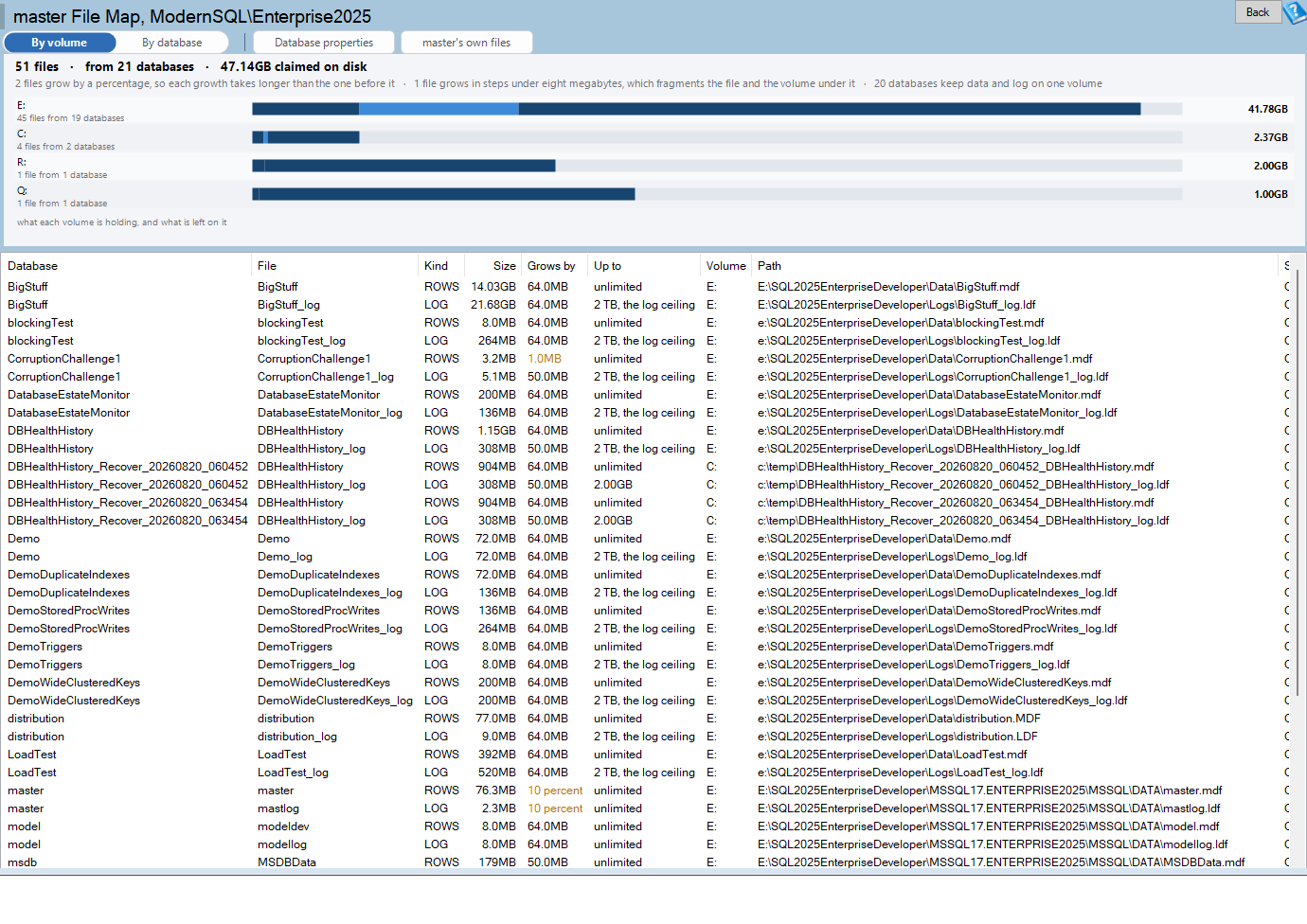
Every other report in the product, and most hand written queries, read 'sys.database_files', and 'sys.database_files' only exists inside a database that is open. The master File Map reads 'sys.master_files' instead, an instance level view that SQL Server keeps current no matter what state a database is in, joined to 'sys.databases' for the state itself, with the volume worked out from each file's physical path. Nothing here requires opening the database it describes. That's the entire reason a suspect or recovery pending database still shows a full row: file name, kind, size, growth setting, ceiling, volume, path, and state, present whether the database behind them answers a connection or not.
master File Map is one of the reports in Database Health Monitor. It runs against your own servers, and it takes about a minute to have this same screen open on one of them.
The columns that carry the answer
Once you know a database's state, the rest of the row tells you what its files are actually doing. Database and File say whose file this is and what it's called. Kind separates data rows from log, filestream, and full text, since each behaves differently as it grows. Size arrives already converted, so you're reading megabytes rather than raw page counts, and Path is worth copying somewhere safe if a database is suspect and a restore or repair needs to point at the exact physical file. The two columns that decide whether a file is actually a problem are Grows by and Up to.
| Column | What it tells you |
|---|---|
| Database | Which database owns the file, whether or not it can be opened |
| Kind | Rows, log, filestream, or full text |
| Size | Current size, already converted from pages |
| Grows by | The growth increment, in megabytes or as a percent |
| Up to | The ceiling, with the three unusual values spelled out |
| Volume | The drive letter or mount point carrying the file |
| State | Online, offline, restoring, recovery pending, suspect, or emergency |

What a healthy reading looks like
A healthy row is almost boring to read. Grows by shows a fixed number of megabytes, chosen for how that particular database actually grows, rather than whatever SQL Server assumed when the file was first created. Up to shows a ceiling with real headroom under it, a number the volume could actually deliver if the file ever needed it. Volume puts the log file on a different drive than the data file it belongs to, so one drive having a bad day doesn't take both halves of the database with it.
- Grows by is a fixed number of megabytes, not a percent
- Up to sits well under what the volume can actually hold
- Log and data files live on separate volumes
- State reads Online across every file the database owns
What a reading that needs action looks like
Percent growth is the first thing worth flagging, because it compounds. Every growth event is bigger than the one before it, so each one takes longer than the last, and a database that grows steadily ends up growing in bursts that get worse over time. The old one megabyte default is the opposite failure: the increment never grows at all, so a file under real load can trigger that same tiny growth event dozens or hundreds of times in a single afternoon, each one pausing writers while SQL Server extends the file underneath them.
A one megabyte growth increment doesn't fail quietly. It just repeats, hundreds of times, until somebody notices the file is still small and the drive is still busy.
Up to carries three values that read as numbers but actually mean something else, and mixing them up is an easy way to misjudge a file that isn't a problem, or miss one that is.
| Value | What it means |
|---|---|
| -1 | Unlimited growth |
| 0 | No growth allowed at all |
| 268435456 | The two terabyte ceiling SQL Server sets on a log file automatically |
268435456 pages is that automatic two terabyte ceiling, set whether or not anyone asked for it, so finding that number on a log file's Up to column isn't by itself a red flag. Finding it where you expected a smaller, deliberate ceiling is. The last thing worth checking here is Volume: a log file sharing a drive with its own data file means one volume failure takes both, and the report calls that pairing out directly under the chart.
By volume or by database
The master File Map has two views, and which one you want depends on the question you actually walked up with. By volume groups every file by the drive or mount point it lives on, one bar per volume, which answers 'what is sitting on this disk, and whose is it.' By database groups the same files the other way, one bar per database, which answers 'where does this one database actually live, across however many drives its files are spread over.' Neither view changes what a row means; they only change which grouping answers your question.

The drill down
The toolbar keeps the drill down short. Database properties opens master Database Properties for a closer look at settings the file list alone doesn't show. master's own files narrows the grid to just master itself, which is what master Footprint covers in more detail when that particular database is the one under suspicion. Because this page answers 'where do the files live' rather than 'how full is the drive,' it links out to Disk Space instead of repeating that number here; the two reports are meant to be read together, not instead of each other. The full column by column reference, including every state a database can be in and what each one means, lives in the master File Map documentation. If growth settings are what brought you here in the first place, How to Track SQL Server Table Size Before It Surprises You is the companion piece on watching a database's size change before it becomes a problem.
What to check on your own server
- Check sys.master_files for any database listed as offline, restoring, recovery pending, or suspect, and confirm its files are still where you expect
- Look for growth increments set to a percentage rather than a fixed megabyte amount
- Look for growth increments still left at the one megabyte default
- Compare each log file's max_size against the two terabyte default of 268435456 to see whether it was ever set on purpose
- Check whether any log file sits on the same volume as its own data file
Try Database Health Monitor Today
When a database goes offline, restoring, or suspect, this is the one screen that still knows what its files are, where they live, and how they are set to grow. Database Health Monitor shows it on every instance you connect, in the time it takes to open the report.
Download Database Health Monitor and run the master File Map report against your own server. There is nothing to configure first, and you will know inside a few minutes whether it tells you something you did not already know.