
Somebody asks which servers are still on the old cumulative update, and nobody can answer without logging into each one. We see it in shop after shop. The spreadsheet says one thing, the servers say another, and the SQL Server patch level of the whole estate stays a guess until someone burns an afternoon proving it.
How do I check the SQL Server patch level of every instance I run? Read the four part build number from SERVERPROPERTY on every instance and compare it with the latest build for that release. That comparison is your SQL Server patch level. Gather the rows into one grid, sort by build, and the instances that stopped partway through a patching round stand out.
The fastest honest answer is a report in Database Health Monitor called Inventory. It returns one row per instance and colors the build red when it trails the newest one known for its release. The rest of this post covers why the spreadsheet fails and what that one row tells you.
Why the asset list drifts
Every audit, every upgrade plan and every support call opens with the same question: what is this server? The answer usually lives in a hand typed list. Someone fills it in on the day of the install, and then the machine gets renamed, the edition gets swapped, a cluster fails over and stays on the other node. The list does not hear about any of it.
The cost is rarely dramatic. It is the slow kind. A patching round that was meant to cover everything quietly stops two servers short. A Developer edition box ends up serving real users. Nobody notices until an auditor, or an outage, forces the question.
The first fix people reach for is the version year. Product says 2019, so the box is fine. It is not a measure of anything. The year tells you the release, and says nothing about how many cumulative updates have landed since.
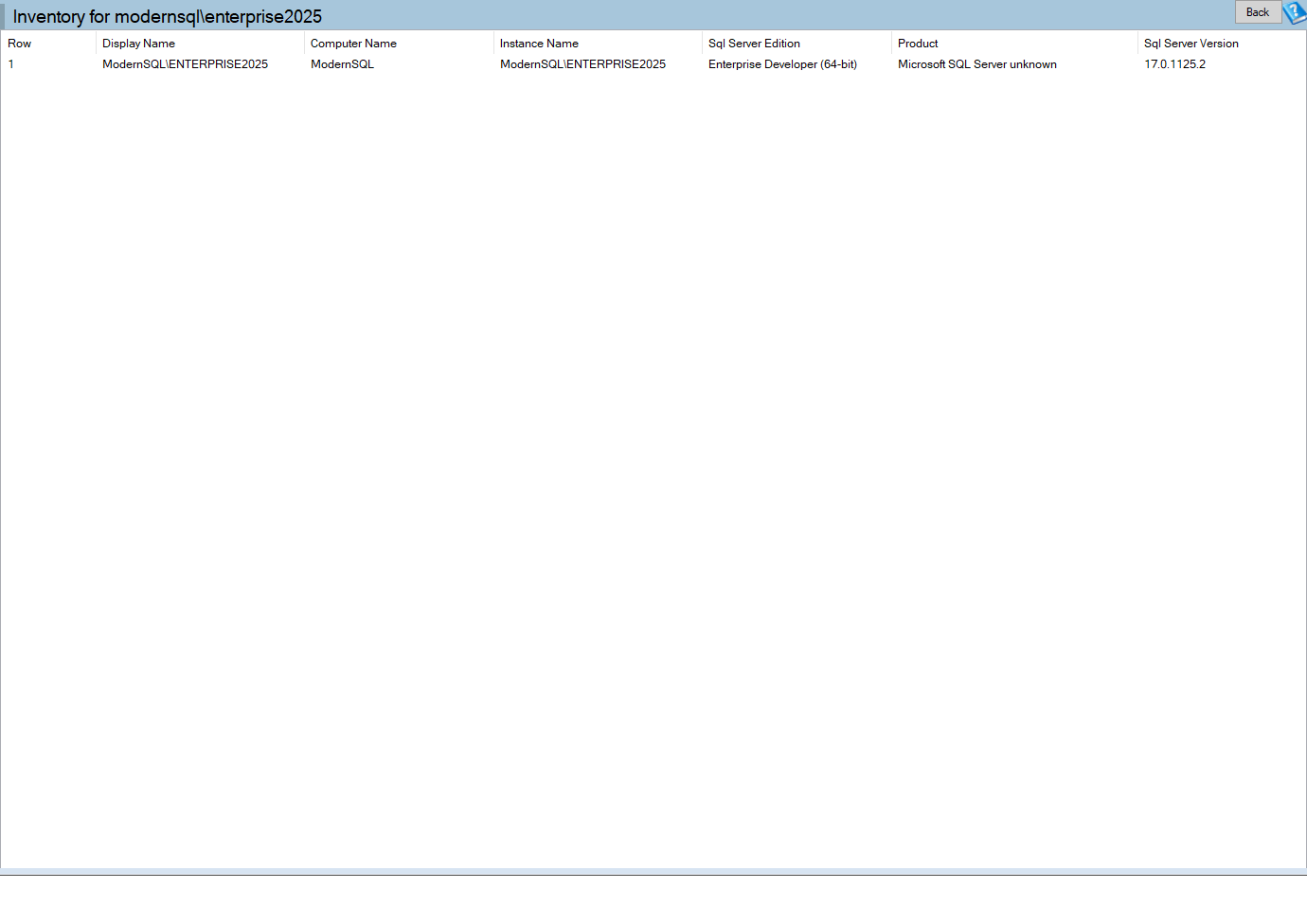
Inventory is one of the reports in Database Health Monitor. It runs against your own servers, and it takes about a minute to have this same screen open on one of them.
Measure the build, not the year
The honest number is the full four part build. The third part moves with each cumulative update, so it is the part that shows how far an instance has drifted. Inventory compares that third part against a table of current builds that ships with the product, and turns the SQL Server Version cell red when the instance is short.
Red is not an emergency. It is a patching conversation, with a list of updates you have not applied. Green is also worth reading carefully. It means current as of the version of the monitor you are running, so the answer ages as the product ages.
One quirk to know about. The year column is built from a fixed list that ends at SQL Server 2022. On a newer release the row still carries a correct build and edition, but Product reads Microsoft SQL Server unknown, and the build is never colored. Do not read that as a fault. It is the one spot where the page degrades instead of going blank.
What the SQL Server patch level row shows
Ten columns, and only eight are facts. Most come from SERVERPROPERTY, which needs no special permission. The exception is Machine Type, which reads sys.dm_os_sys_info and wants VIEW SERVER STATE. Without that permission it is the only thing missing.
| Column | What it tells you |
|---|---|
| Display Name | The name SQL Server believes it has |
| Computer Name | The Windows machine name, which is the active node on a cluster |
| SQL Server Edition | Enterprise, Standard, Developer, Express and so on |
| SQL Server Version | The full build number, red when behind |
| Clustered | Yes for a failover cluster instance |
| Machine Type | Virtual or Physical, Unknown on 2005 and 2008 |
The other two columns, Asset State and Department, are placeholders. SQL Server knows neither, so they read In Use and blank. They exist so the grid pastes straight into an asset spreadsheet with the columns that sheet expects.
Machine Type has a small catch. A value of 1 from virtual_machine_type means a hypervisor and shows as Virtual. A value of 2, for other kinds of virtualization, reads as Physical. An unusual container or emulation layer can fool it.

Patterns worth ten minutes
- Developer edition on a production server. Free and fully featured, but not licensed for production use. This grid shows it faster than anywhere else.
- Express where someone expected Standard. It explains a memory ceiling, a database size ceiling and a missing SQL Server Agent in one go.
- Display Name and Computer Name differ on a standalone instance. Someone renamed the machine without telling SQL Server.
@@SERVERNAMEonly changes throughsp_dropserverandsp_addserver, so jobs, linked servers and replication may point at a name that no longer exists. - Everything red except two. A patching round that did not finish. Sort by build and the grid shows where it stopped.
- Clustered is Yes with a Computer Name you did not expect. The instance failed over and stayed there. Not a fault, but worth knowing.
If that last pattern sounds familiar, Availability Group Lag: What a Failover Would Cost You covers what a move to another node can cost.
Taking the answer into a patch plan
Run the report from the server tree and you get one row for that instance. Run it from the Start Page toolbar and you get one row for every connected instance, titled Inventory – All Instances. That version needs a registration code. The single instance report does not.
Two behaviors matter when you read the big grid. Servers that do not answer are skipped, so a missing row means a server that was not online when the page ran, not a server that does not exist. And the run spaces out its connections, so a large estate is not hit all at once.
Then sort by build. That sorted list is your patch plan, and it also tells you which edition and which cluster nodes to expect before you start. Nothing is stored by the page, so each run reflects the servers as they are right now. The full column reference lives in the Inventory documentation.
Patching is one input to an audit. For the other, a score that can look healthy while hiding a failure, read Is Your SQL Server Security Score Hiding a Critical Fail? alongside this one.
What to check on your own server
- Run the single instance inventory on one server and compare its Display Name with its Computer Name
- Check the edition against what you believe you bought, and flag any Developer edition that users connect to
- Note which builds are red and confirm they trail the latest cumulative update for their release
- Sort the all instances grid by build and mark where the last patching round stopped
- Grant VIEW SERVER STATE to the monitoring login if Machine Type reads Unknown on a newer instance
Try Database Health Monitor Today
Inventory puts the name, edition, build, cluster and virtual status of every instance into one grid, with out of date builds flagged red. Database Health Monitor shows it on every instance you connect, in the time it takes to open the report.
Download Database Health Monitor and run the Inventory report against your own server. There is nothing to configure first, and you will know inside a few minutes whether it tells you something you did not already know.