
Most teams that run SQL Server do not have a full time database administrator. They have a developer who knows the database, an IT manager who keeps it backed up, and a vendor who gets called when it is slow. For those teams, the hard part of performance work is rarely the fix. It is working out what the problem is quickly enough that the business does not notice. Database Health Monitor version 4.1796 is built around that gap.
This release adds 28 new reports, a Query Card that puts everything about a statement in one window, an alert that now catches blocking while it is happening, documentation for the tray application, and 649 fixes. This post explains what that means in business terms: less time spent guessing, better conversations with developers and vendors, and earlier warning when something is going wrong.
The real cost of a slow database
A slow database does not announce itself with an error. It shows up as an order screen that takes eight seconds, a report that times out on Monday morning, a nightly job that now runs into the business day. People work around it, then they complain, then someone is asked to look into it. By the time the request reaches whoever manages the server, the problem has often been happening for days, and the evidence is gone because the plan cache turned over or the server restarted.
The expensive part is the investigation. A skilled person can find the cause of most slow queries, but it takes a chain of questions: which statement, did its plan change, are the statistics stale, is it blocking, is it the application. Each question usually means another query against another system view, and each answer is only as good as the person interpreting it. Version 4.1796 turns that chain into pages that already ask the questions and show the evidence.
One window for one statement
The feature that matters most for a small team is the Query Card. Press Ctrl+Q on any statement, from CPU by Query, Waits by Query, Active Queries, Chatty Queries, Read Amplification, the Query Store pages and others, and a single window shows the statement in its context, the plan summary, the minimum, average, maximum and last statistics, the compiled parameters, the Query Store history and what the other reports have found about it.
That is useful for you, and it is just as useful for the conversation you have afterward. The Copy for a ticket button puts a clean summary on the clipboard. Paste it into a work item or an email to your developer or vendor and they have the statement, the numbers and the evidence in one message, instead of a vague report that the system is slow. Developers fix problems faster when the first message contains the proof.
There is also a pinned mode, where the card follows the row you select. For a weekly review of the most expensive statements, you arrow through the list and read each card in turn. What used to be a half day of queries becomes a short, repeatable review that someone other than your most senior person can run.
Three situations, and the reports for them
“The system is slow right now”
When someone walks over and says the system is slow, the first need is a fast, honest answer about what is happening this minute. Top Queries Right Now ranks statements by what they cost over a short sample, not by what they have accumulated since the server started, so a statement that was expensive last month does not hide today’s culprit. Storage Latency Now measures the disks over the same kind of short window and compares them to their lifetime average, so you can say whether storage is the cause. Lock Footprint and Escalation Watch shows what each transaction is holding locked, and how close it is to a table lock that would stop everyone else. Live Query Progress shows how far along a running request is, and lets you stop it when waiting is not worth the cost.
Together those pages let you answer “what is it” in a few minutes, and answer “is it the disks, the locks, or one bad query” before you start changing anything.
“It was fine last week”
A change in speed means a change in something, and the harder question is what. The Plan Change Timeline draws a query’s plans over time and sets beside them the events that commonly cause a change: a statistics update, an index or table change, a procedure alteration, a compatibility level change or a restart. When a slowdown begins right after one of those events, the cause is usually plain.
Statistics Behind the Busiest Plans, Compiled Parameter Values and Plan Settings by Database cover the three most frequent causes. Statistics may be stale. A plan may have been built for an unrepresentative value. A database may be running under a compatibility level or estimator setting that does not match its siblings. Estimate Accuracy by Operator then finds the first operator where the optimizer’s estimate was wrong, which is where the plan went off course.
For a small team this is the most valuable group, because “it was fine last week” is the most common complaint and the hardest to investigate after the fact.
“The application keeps timing out”
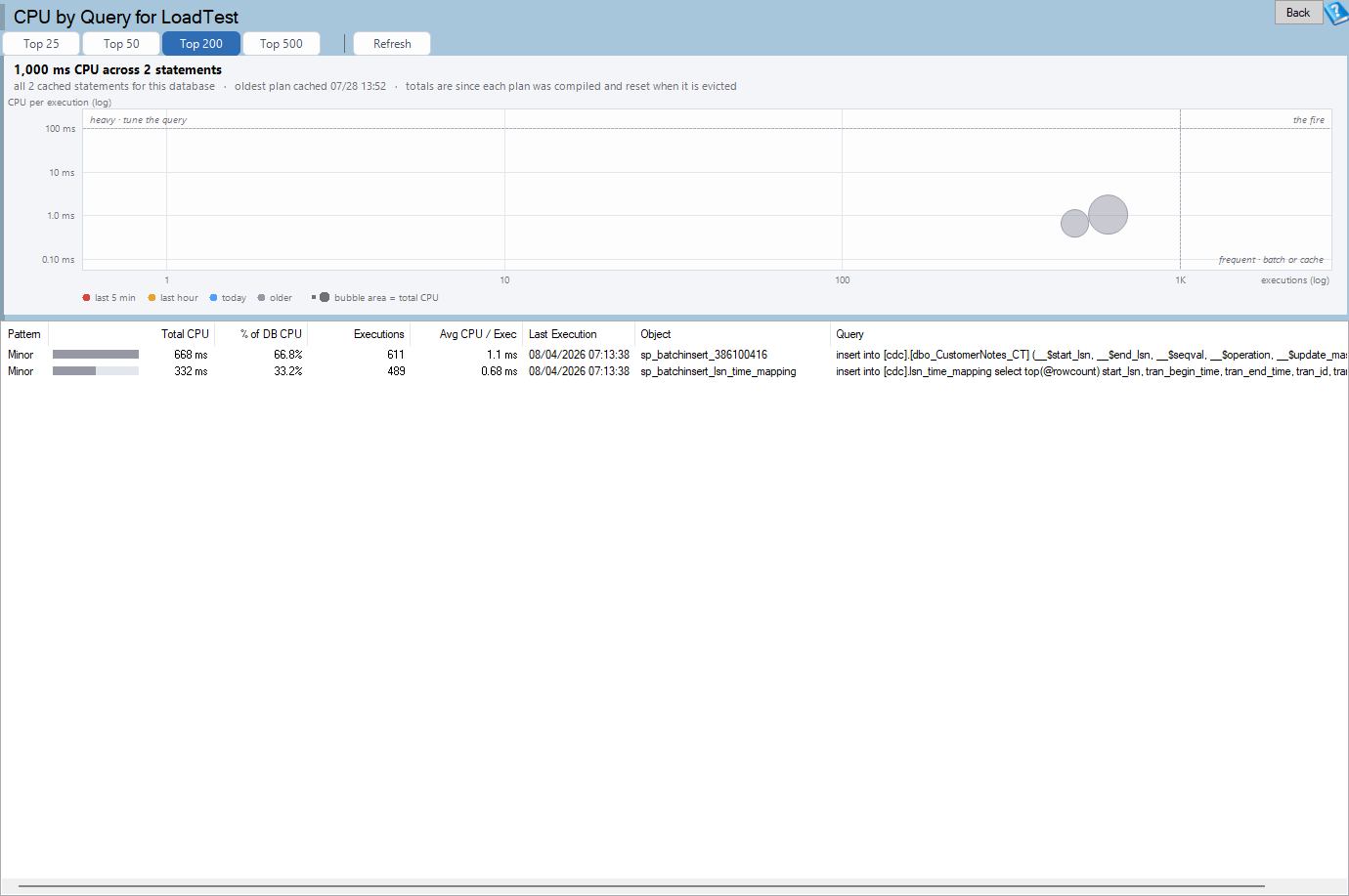
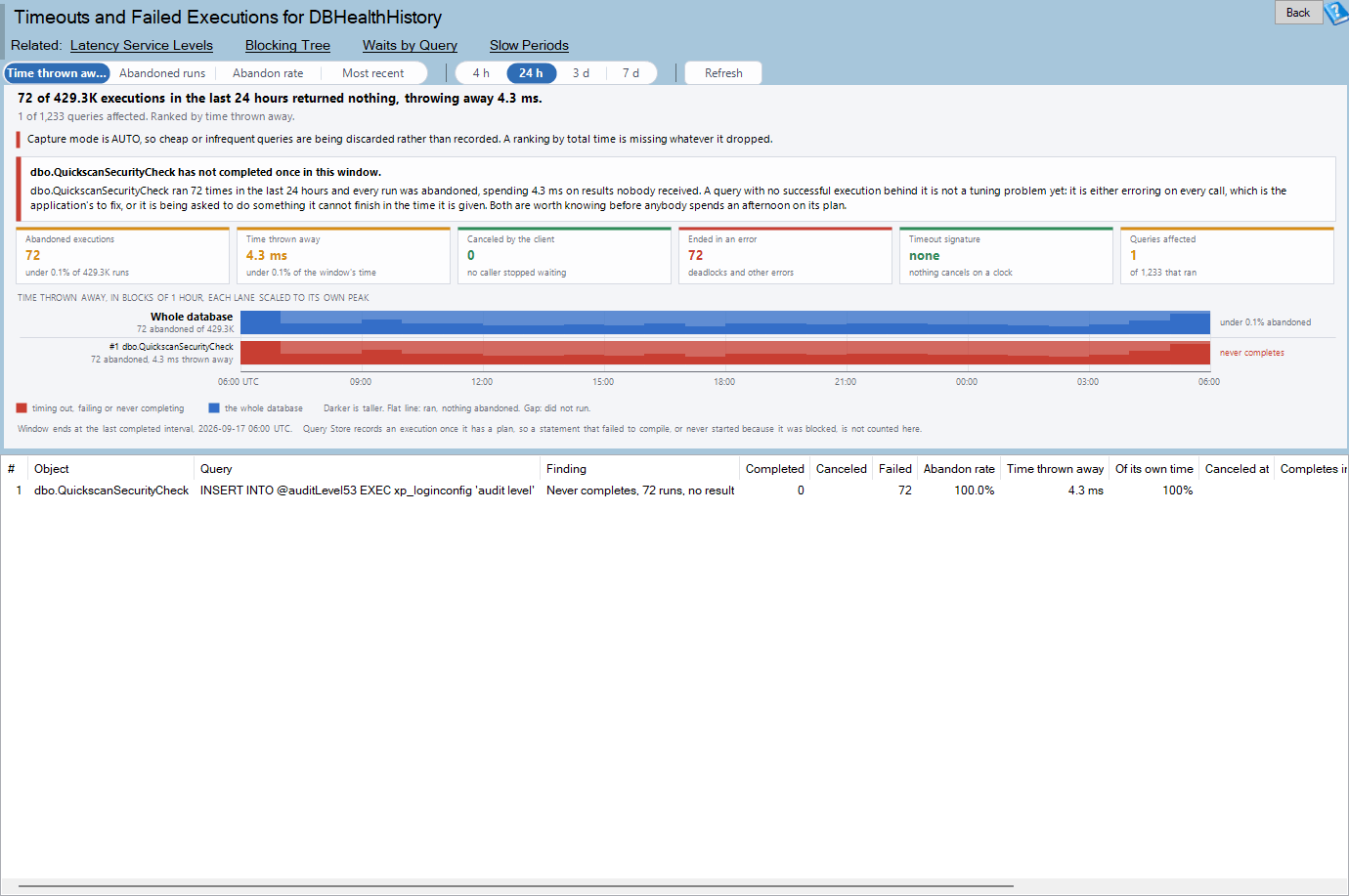
Sometimes the database is fine and the application is the problem, and the difficulty is proving it. Chatty Queries plots how often each statement runs against what it costs per call, and finds the patterns where an application makes thousands of tiny requests instead of one reasonable one. Connection Churn and Pooling Health shows logins per second, connection age and which applications are not using connection pooling. Query Timeouts and Client Aborts lists the statements clients gave up on, which are failures the server never logged. Result Set Size and Client Waits separates a result that is too large from a client that reads too slowly.
Whether the evidence points at the database or the application, it is a better basis for a conversation with the software vendor than an opinion. A chart showing that a screen runs the same query ten thousand times a minute is difficult to argue with.
Earlier warning on blocking
Blocking is one of the most disruptive problems a small team faces, because one stuck session can stop an entire application. Until now alert 5010 looked at historic blocking, which meant it told you about a problem after the fact. In version 4.1796 it alerts on blocking that is active, so you hear about it while there is still something to do. The blocking query monitor start time also moved from 1am to 12am, and the history upgrader applies the change to your existing databases, so there is nothing to configure.
This is a change from reporting to prevention. A blocking alert that arrives in the middle of the problem lets someone find the head of the chain and resolve it before users start calling.
Looking after the tray application
The Database Health Monitor tray application and service are what send alerts and gather history. This release gives them proper documentation: eight help pages covering how monitoring and alerts work, when alerts read from msdb and when they use the email queue, how to add servers, how to set up email, what the web dashboard shows, how history works, and what the tray icon and its menu do. The pages open from a Help button, from F1 in the Manage and SMTP dialogs, and from the tray menu.
The installer got a fix that is easy to underestimate. If the service was running before an update, it is started again afterward, and the installer checks that it actually reached the running state. An updated server that quietly stopped being monitored is a serious problem, and it is now much harder to have one.
Quick Scan, for a second opinion
Quick Scan is the fast security and configuration check that many teams run first. This release improves its honesty. The report now lists checks that could not be completed instead of saying that no issues were found when some checks failed. The security check now works against read only secondaries in an Availability Group, where it used to fail. And sending a scan to us no longer freezes the window; it works in the background with timeouts and a Cancel button that works.
Planning your use of the new reports
Twenty eight new reports is a lot, and nobody needs all of them on the first day. A practical approach for a small team is to adopt them in three steps.
Week one: learn the Query Card. Pick the page you already use most, probably CPU by Query, and press Ctrl+Q on the top few statements. Read the card. Get used to the layout and the Copy for a ticket button.
Week two: add the weekly review. Run Query Anti-Patterns and Table Tuning Advisor once. The first lists writing faults in the costliest statements, ranked by cost per day, and the second ranks tables by plan cost. Between them you have a work list for a month.
Week three onward: keep the incident pages ready. Know where Top Queries Right Now, Storage Latency Now and Lock Footprint live, so that the next time someone says the system is slow you open the right page in seconds.
The remaining reports can be picked up as the need arises. They are in the report tree next to related pages, so you will find them when you look for something nearby.
Questions managers ask
If you are the person who signs off on tools and hours, a few questions come up every time performance work is proposed. Here is how this release helps answer them.
How do we know the problem is real? Because the pages show numbers: executions per minute, cost per call, latency against the lifetime average, how close a transaction is to a lock escalation. A report that says a table is the most expensive one in the plan cache, with the statements behind it, is evidence you can show to someone who does not read execution plans.
How do we know the fix worked? Run the same page before and after. Many of the new reports show a window and a measure, so a change in cost per day or in average duration is visible on the same chart you used to find the problem. The Plan Change Timeline in particular shows whether a plan change stuck or reverted.
Is it the database or the application? This is the question that causes the most friction between teams, and the new reports for chatty queries, connection churn, client waits and timeouts exist to answer it with data. When the answer is the application, you can hand the evidence to the people who own it and move the conversation forward.
Who can do this work? The Query Card and the findings make a first pass of tuning possible for someone who is not a specialist. The pages name causes in plain language, offer scripts you can read before running, and explain what they changed. A generalist can work through the weekly review. The harder cases, such as a plan that flips only under load, still benefit from experience, but they arrive with the evidence already gathered.
What does it cost to run? The tool itself is light, as described below, and the time it saves is the real figure. A tuning investigation that used to take an afternoon of queries and guesses can often be answered in the time it takes to open three pages.
A typical month
To make this concrete, picture a company with one main SQL Server, a handful of databases and a developer who also acts as the database owner. In a typical month, here is how version 4.1796 changes their routine. This is an illustration of how the pages fit together and not a record of a specific customer.
At the start of the month the developer runs Query Anti-Patterns and Table Tuning Advisor. The first shows that the costliest statement uses a function on a column in its filter, so no index can help. The second shows that one table accounts for most of the scan cost. Those two findings become the month’s tuning tickets, each with a Query Card summary attached.
Midway through the month, the finance team reports that a report is slow on Tuesday mornings. The developer opens Plan Change Timeline for the query and sees that its plan changed on Sunday night, after a maintenance job updated statistics. Compiled Parameter Values shows the plan was built for an unusual value. A short recompile hint solves it, and the timeline shows the plan going back to normal.
Near the end of the month, the alert for active blocking fires one afternoon. Because it is firing during the problem, the developer opens the Blocking Tree, finds the session at the head of the chain, a forgotten open transaction in a desktop tool, and resolves it in minutes. Under the old behavior the alert would have arrived the next day with a history of what had already happened.
None of these steps required deep expertise in execution plans. Each took a few minutes, and each left a record that could be shared. That is the effect the release is aiming for: not replacing the expert, but moving more of the routine work within reach of the person who is already there.
How this fits with managed services
At Stedman Solutions we use Database Health Monitor on our own client work, and the reports in this release are drawn from the questions we ask on engagements. The Query Card summarizes what we would otherwise collect by hand. The timeline and the statistics pages show what we look for when a client says that something changed. The blocking alert reflects how we prefer to monitor: tell the person while there is still time to act.
Many clients start by running the tool themselves, and some later ask us to review what it finds, or to keep watch over servers on their behalf. Either approach works with the same pages. When we are involved, the evidence in the Copy for a ticket summary is what we work from, so there is no lost time re-collecting what you have already gathered.
Cost and risk
It is reasonable to ask whether a monitoring tool adds risk. The new reports read information SQL Server already maintains: the plan cache, Query Store, dynamic management views and the system catalogs. They do not install anything in your user databases. The pages that sample take two quick reads and compare them. The two pages that use Extended Events, Query Timeouts and Client Aborts and the precise measure in Page Split Hot Spots, create a session, read it and remove it, and they tell you if you lack the permission instead of failing partway.
Where a feature depends on a SQL Server version, the page says so. Estimate Accuracy by Operator needs SQL Server 2019 or later. The page split measure is disabled on SQL Server 2008 and 2008 R2. Nothing in this release changes your data or your server configuration. The few pages that can act, such as killing an idle session or running a statistics update script, ask before they do and show what they will do first.
649 fixes you will not notice, which is the point
Alongside the new features, this release includes 649 fixes across Database Health Monitor, Azure SQL Health Monitor, Space Recovery, Schema Drift and the tray application. Most came from a systematic review of the report pages. They cover grid columns that could not be reached on a narrow screen, text clipped at the edge of a chart, compatibility with SQL Server 2008 and 2008 R2, and scripts that wrote the wrong statement for an unusually named object. A fix like that never makes a headline. But if you present a report to a manager or a customer, you want the one that is correct at every window size and for every object name.
A short checklist for the first week
If you only have an hour to spend with the new release, here is a checklist that gets the most value from it.
First, install version 4.1796 and confirm the service and tray application are running after the update. Second, press Ctrl+Q on the top statement in CPU by Query and read the card. Third, run Query Anti-Patterns and note the top three findings. Fourth, run Table Tuning Advisor and note the most expensive table. Fifth, open the tray application help and read the page on msdb versus the email queue, so you know exactly how your alerts are delivered. Sixth, confirm that alert 5010 is enabled for the servers where blocking matters. That hour leaves you with a work list, a working alert and a clear picture of how your monitoring behaves.
Getting version 4.1796
Version 4.1796 installs over your existing copy and keeps your settings and history. The installer restarts the service if it was running. After installing, open the report tree and look at the new pages, press Ctrl+Q on a statement, and read the Query Card.
If you would like help interpreting what the reports find, or want a second pair of eyes on a problem server, that is part of what we do at Stedman Solutions. Database Health Monitor is the tool we use, and the findings in these reports are the same ones we work from. Whether you handle the tuning yourself with this release or bring us in for the harder cases, the goal is the same: find the cause quickly, fix it properly, and know sooner the next time something goes wrong.