
Across many client servers we see the same routine. Someone spots a deadlock error in an application log, opens the one graph that was captured, fixes one procedure, and calls it done. Thursday night it happens again. A deadlock heat map answers the question nobody asked the first time: not what collided, but when.
How do I find out when deadlocks happen in SQL Server using a deadlock heat map? A deadlock heat map plots recorded deadlock counts with hours down and days across, so clusters stand out at a glance. The hour a deadlock happens usually points at the other job it collided with. Start there to find the overlapping schedule, then open the deadlock graphs for that hour.
That is the job of the Deadlocks by Hour report in Database Health Monitor, and it starts from a simple observation about how deadlocks behave.
Why one deadlock graph misleads you
The graph is where everybody looks first. It names two statements, two sessions and two locks, and it feels like the whole story. It is a single frame from a film.
Deadlocks are rarely spread evenly. They bunch up around the moment two code paths run together: a nightly batch meeting the tail of the working day, two report jobs scheduled a minute apart, month-end processing landing on top of routine writes. One graph cannot tell you that. It has no memory of the Tuesday before.
A raw total is no better. Forty deadlocks this month sounds alarming or boring depending on your mood. Forty spread across a month is background noise. Forty in the same sixty minutes is a design problem with a clock attached.
Reading the deadlock heat map
The report draws every recorded deadlock as a grid. Hours run down the side, days run across the top, and each cell is one hour of one day. The number in the cell is how many deadlocks were recorded then. Darker means more.
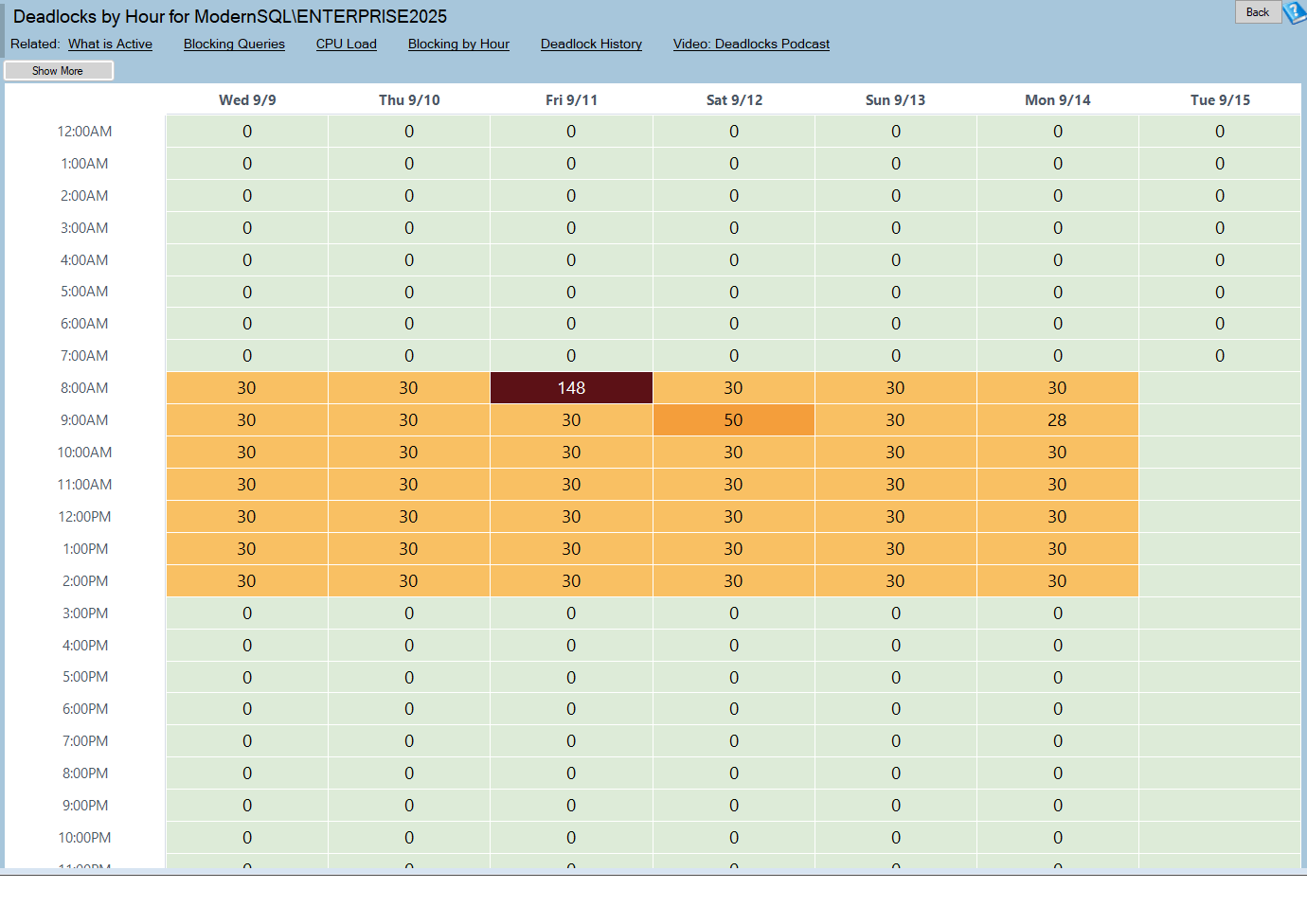
Deadlocks by Hour is one of the reports in Database Health Monitor. It runs against your own servers, and it takes about a minute to have this same screen open on one of them.
Two design choices matter more than they first appear.
- Counts, not percentages. Most heat maps in the product show a share of the busiest slot. Here the raw number is shown, because three deadlocks is three deadlocks and normalizing it would hide the only figure you care about.
- Blank is not zero. An hour where nothing was recorded is drawn differently from an hour with no deadlocks. Otherwise a collection gap and a clean hour look the same, and "we had no deadlocks" is a claim worth being sure about.
Click any cell and you land in the deadlock history for that hour, with the statements on both sides of each graph. The range runs from one to six weeks, added or removed a week at a time with Show More and Show Less. The same range is shared with the blocking heat map, so the two always cover the same window. That is deliberate. A deadlock is contention that failed to resolve itself, and most contention never gets that far.
What the pattern is telling you
Start by looking for the cluster. A single deadlock is life. A cell that recurs is a design problem. Then ask what else runs in that hour, because that is usually the other half of the collision. The common shapes are worth knowing:
| Pattern on the map | Likely meaning |
|---|---|
| Dark cell at the same hour every weekday | Two scheduled things overlapping; moving one by a few minutes is often the whole fix |
| Deadlocks in the first hour of the working day | Batch work still finishing as users arrive |
| One dark column | One bad day: a release, a data load, a manual job |
| Dark cell on the same date each month | Month-end, which is predictable and therefore schedulable |
| Spread evenly, no pattern | An access-order problem in the application, not a scheduling clash |
Widen the range before you decide a monthly pattern is real. Then compare against the blocking map, which is covered in Find Patterns in Your SQL Server Blocking History. Deadlocks are the visible tip of contention that was already there.
One caution. Deadlocks are captured after the fact by a collector that runs every fifteen minutes, so one that happens at 10:59 can appear in the 11:00 cell. Treat a cell on an hour boundary as plus or minus a quarter hour.
This page answers when. It does not tell you what keeps colliding with what, and that is the question whose answer is a fix. For that, go to SQL Server Deadlock History: Find What Collides, and if the same two objects keep appearing in reverse order, Reversed Lock Order: The Deadlock That Keeps Coming Back is the next stop. The full reference for this report is in the Deadlocks by Hour documentation.
The report reads recorded history, so it works even when the monitored server is unavailable. It does need collection configured. Without that there is nothing to draw, and an empty map should send you to check the collector before you tell anyone the instance is clean.
What to check on your own server
- Open the deadlock history for your busiest instance and note which hours recur
- Look for a dark cell at the same hour on several weekdays
- List every scheduled job and batch that runs in that hour
- Move one of the overlapping jobs by a few minutes
- Check that collection is running before you trust an empty map
Try Database Health Monitor Today
Deadlocks by Hour shows the hour and day your deadlocks cluster, so you can see which scheduled job is colliding with which. Database Health Monitor shows it on every instance you connect, in the time it takes to open the report.
Download Database Health Monitor and run the Deadlocks by Hour report against your own server. There is nothing to configure first, and you will know inside a few minutes whether it tells you something you did not already know.