
A management data warehouse that stops updating rarely announces itself. The nightly job still runs. The dashboard still opens. The numbers on it just quietly stop moving. Nobody marks the calendar when a warehouse goes stale. Somebody notices weeks later, usually while trying to trust a chart that hasn't moved in a while.
Why did my management data warehouse stop updating in SQL Server? A management data warehouse stops updating when the upload job for a collection set fails while its collection job keeps running, so data keeps building in the cache instead of reaching the warehouse. Check syscollector_execution_log for the failure message tied to the upload job before assuming the collector itself is broken.
Most DBAs check Agent job history first. It's the timeline everyone already trusts. It shows the collection job green, run after run, and that reads as healthy. Open Database Health Monitor against the same instance and the picture changes. The warehouse behind it can be falling behind by the hour.
This isn't rare. Across the client instances we've looked at, the collector is either fully ignored or fully trusted. Both extremes hide the same failure: a cache that fills while a warehouse starves.
Where the Management Data Warehouse Actually Lives
Every collection set actually runs two Agent jobs: one that collects, one that uploads. A set where collection works and upload doesn't is the common failure. It hides easily behind a page that tracks only one job. The Data Collector report shows both halves together. The warehouse instance and database name sit in one row of the collector's own config store, not in anybody's notes.
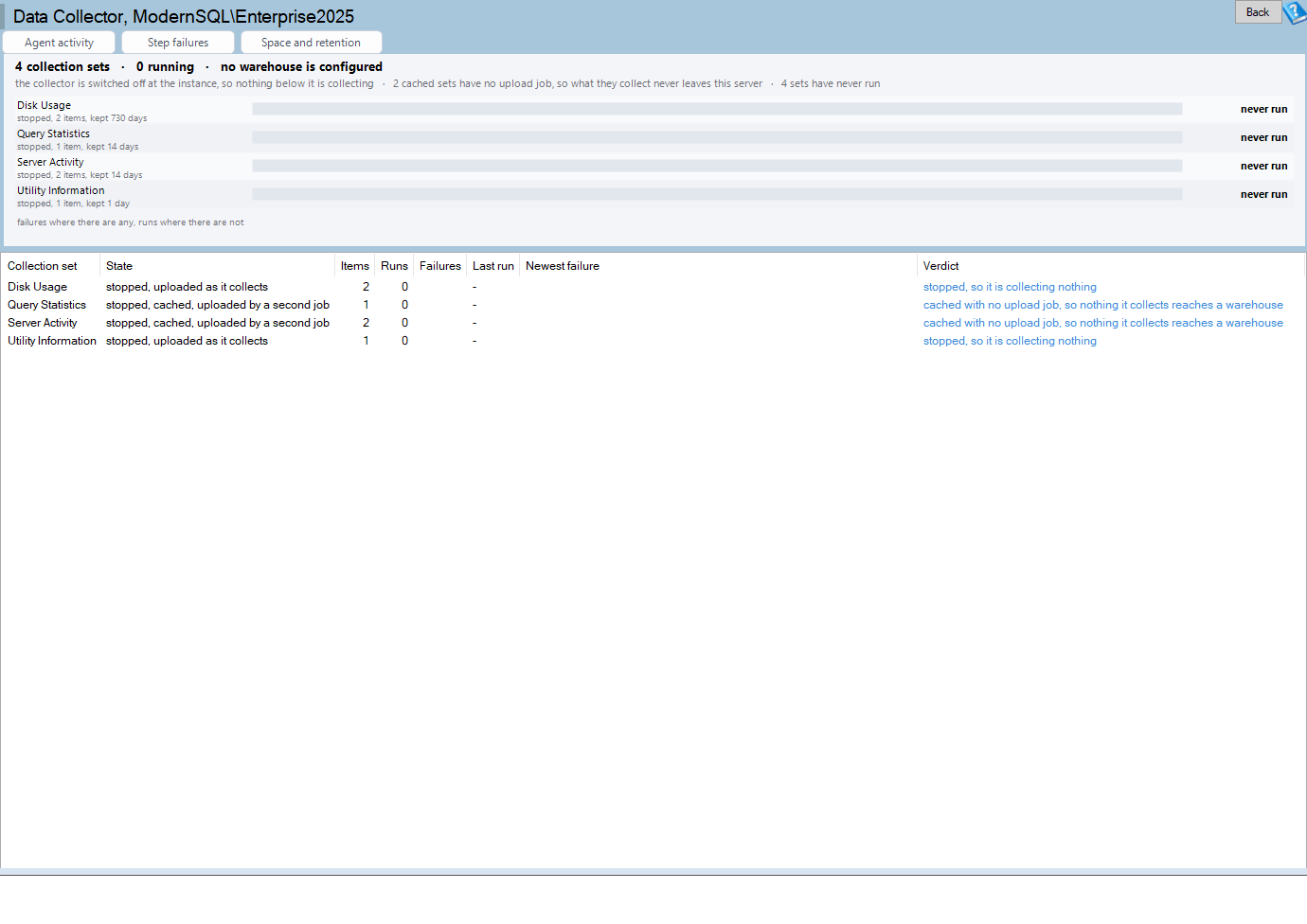
Data Collector is one of the reports in Database Health Monitor. It runs against your own servers, and it takes about a minute to have this same screen open on one of them.
The Failure Text Nobody Reads
The same config store also says whether the feature is switched on at all, before you go looking at jobs that were never going to run. syscollector_execution_log keeps a failure_message column. In most shops, nothing ever reads it. That single field is usually the whole answer: a warehouse that moved, a login that expired, a database that filled up. Checking it costs less time than the meeting where somebody asks why the numbers stopped moving. That's the number worth trusting, not whether the job succeeded, but what it actually recorded on the way through.
The honest number isn't whether the job ran. It's failures counted against runs, one bar per collection set. A set with failures shows the failure count. A set with none shows how often it has run instead. An instance that has never turned the collector on draws bars labeled never run. That's the honest answer too, not a blank chart.

What the Verdict Column Actually Says
The grid lists state, items, runs, failures and the newest failure text for every set. The verdict column is the one to read first. It says which half broke: collecting but not uploading, or not collecting at all. A set that keeps caching without uploading behaves like the growth we've written about before, in How to Track SQL Server Table Size Before It Surprises You. Nothing looks wrong until somebody measures it.
On an instance where the feature was never turned on, the page says so directly: no collection sets are defined here. On versions before SQL Server 2008, it says the same views don't exist at all. Neither is a bug. Neither leaves you guessing why the screen is empty.
The cost isn't the collector itself. It's the reporting nobody trusts once someone finds out the warehouse has been stale for a month, and every chart built on it has to be re-checked by hand. That's a bigger job than reading one failure message would have been.
Match what you're seeing to what to check next:
| If you see this | Go here next |
|---|---|
| Collection job succeeded, warehouse unchanged | Check the upload job in Agent Activity |
| A failure message you don't recognize | Open Job Step Failures for the full text |
| A set that's cached for months | Check msdb Space and Retention |
None of this requires guessing. The state, the verdict and the failure text sit on one page. So do shortcuts into Agent Activity and Job Step Failures. It rarely takes longer than that. Once you know which half failed, fixing it is usually quick: a corrected login, a warehouse pointed at the right server, or an upload job that got disabled during maintenance and never turned back on.
The Data Collector documentation covers every column and message this page can show. It also lists the toolbar shortcuts into Agent Activity and Job Step Failures.
What to check on your own server
- Check whether the upload job for each collection set is actually running, not just the collection job
- Query syscollector_execution_log for the newest failure_message on a set that looks stalled
- Confirm the warehouse instance and database name in syscollector_config_store match where you expect the data to land
- Watch msdb size on any set that has been collecting for months without a successful upload
Try Database Health Monitor Today
It stops a failing upload job from quietly starving the management data warehouse everyone else is reporting from. Database Health Monitor shows it on every instance you connect, in the time it takes to open the report.
Download Database Health Monitor and run the Data Collector report against your own server. There is nothing to configure first, and you will know inside a few minutes whether it tells you something you did not already know.
Related reading: A Password Protected SSIS Package Can Stall a Migration. Packages stored directly in msdb, outside the SSIS Catalog, can carry passwords nobody remembers, and this piece walks through spotting them, along with the maintenance plans hiding among them, before a migration goes sideways.
Related reading: How to Find Offline Database Files in SQL Server. A companion post walks through the master File Map report, the one screen in Database Health Monitor that still lists a database's files, growth settings, and volumes even when that database is offline, restoring, recovery pending, or suspect.