
Tuesday, twenty to nine. A client's on-call engineer forwards an alert: a load job that always finished before six ran until half past four instead, on a server nobody currently on the team had ever opened a session against. The person asking for an opinion has a stand-up in eight minutes and wants to know, before it starts, whether this is worth escalating. Nobody has the connection string. The engineer who built that server left the company over a year ago, and nobody especially wanted to find local SQL Server instances by guesswork with eight minutes on the clock.
How do I find local SQL Server instances without typing a connection string? Database Health Monitor's Welcome Page can find local SQL Server instances automatically, before you connect anything. It reads the Windows registry, both the 64-bit and 32-bit views, to list every instance installed on the machine, ranks them by release with the newest first, and fills the connect dialog in with the name so you only need to click Connect.
The assumption going in was that connecting would be the slow part, the way it usually is when nobody remembers a server name: guess at a default instance, dig through an old spreadsheet, wait on someone with access to send a connection string. Call it ten minutes gone before any real diagnosis starts.
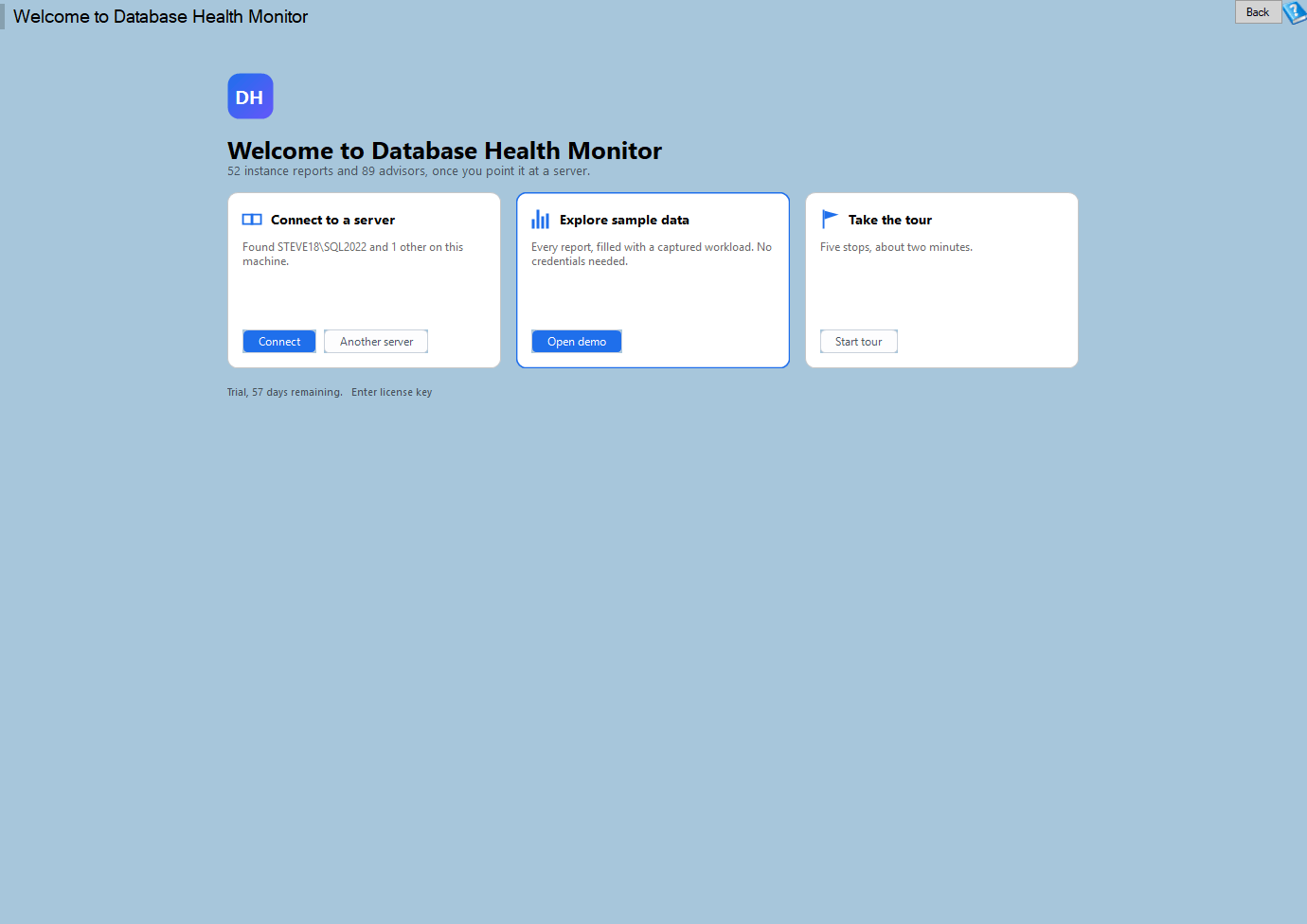
Welcome to Database Health Monitor is one of the reports in Database Health Monitor. It runs against your own servers, and it takes about a minute to have this same screen open on one of them.
How to find local SQL Server instances without a name
The Welcome Page had the instance named before a connect dialog opened elsewhere would even have finished loading. It works from the Windows registry rather than the network, checking both the 32 bit and 64 bit views, so an install registered by either one turns up. Two releases on the same box, and it offers the newer one; two instances sharing a release, and the default instance goes first, ahead of anything named. None of that needed a login, a broadcast, or the SQL Server Browser service, because the registry already had the answer sitting in it.
Connect opened the ordinary login dialog with that server name already sitting in it, rather than trying to sign in silently. Windows authentication is usually right on a local box, though not always, and a dialog that starts correct beats a silent attempt that fails for a reason nobody can see yet. It also listed servers this machine had reached before, most recent first, remembering only the name and never the connection string. A saved connection string is a place for a password to hide.
The part that mattered a week too late
What the Welcome Page could not do was flag the job before the alert did. That was never its job. But the same registry lookup that named the instance in under a minute during the incident would have named it just as fast a week earlier, the first time anyone opened the product on that machine. An instance that announces itself, by name, unprompted, is not a hard one to add to a routine check. The gap here was never discovery. It was that nobody had pointed anything at that server before the job started missing its window.
By the time the stand-up started, the engineer was already inside the real server, reading job history instead of guessing at one. Four hours turned out to be a statistics update that had not run in months, not the disk problem everyone had been braced to escalate. Getting there took under a minute rather than the ten anyone had budgeted, and the whole difference sat in not having to type anything to begin.
Two more doors on the same page
The page carries two more doors that were not needed on that call but earn their place elsewhere. Explore Sample Data points the whole product at a recorded dataset, every report and chart and grid working normally with nothing able to write anywhere, which suits a laptop where SQL Server was never installed, or a conference room with the network switched off entirely. Take the Tour waits for a real server to connect before it runs at all, because a tour has nothing to point at when the tree is still empty.
Try Database Health Monitor Today
It removes the guesswork of naming an unfamiliar SQL Server instance before you can even start diagnosing what is wrong with it. Database Health Monitor shows it on every instance you connect, in the time it takes to open the report.
Download Database Health Monitor and run the Welcome to Database Health Monitor report against your own server. There is nothing to configure first, and you will know inside a few minutes whether it tells you something you did not already know.