

This is just one of the many checks that our Daily Checkup and Quickscan Report from Stedman Solutions will report on.
Understanding the Impact of SQL Server AutoClose Setting on Performance
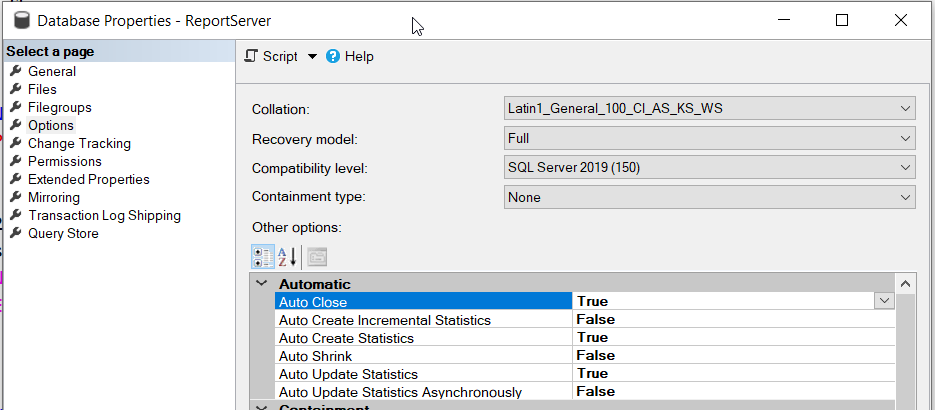
The SQL Server AutoClose database setting, when enabled, can significantly impact the performance of your database. Below are key reasons why:
The Hidden Costs of SQL Server AutoClose: Why You Should Think Twice
The AutoClose setting in SQL Server might seem like a convenient feature—shutting down a database automatically when the last user disconnects to free up resources. But this seemingly helpful option comes with a host of performance drawbacks that can silently undermine your system. Let’s explore the five major reasons why enabling AutoClose can hurt more than it helps, especially in production environments.
1. Resource Overhead: The Startup Tax
When AutoClose is enabled, SQL Server closes the database as soon as the last user logs off. While this might sound like a smart way to save resources, it creates a problem: every new connection forces SQL Server to restart the database from scratch. This isn’t a quick process—it involves reading the database files from disk, allocating memory, and running recovery checks to ensure everything is consistent. For small databases, the delay might be minor, but for larger or more complex ones, it can take seconds or even minutes. Users end up waiting longer than necessary, especially during peak connection times.
Real-World Impact: Picture an e-commerce site where customers connect throughout the day. Each new session could trigger a noticeable lag, driving frustration and potentially losing business.
2. Cache Clearing: Wiping Out Performance Gains
One of the most damaging effects of AutoClose is on SQL Server’s Buffer Pool—the memory cache that holds frequently used data and query execution plans. When the database shuts down, this cache is completely cleared. Upon restart, SQL Server has to reload data from disk (a slow operation) and recompile execution plans (another time-consuming task). This wipes out the advantage of keeping data in memory, forcing the system to start over every time.
For databases with frequent queries or complex operations, this constant cache clearing can tank performance. It’s like emptying your toolbox every time you finish a task—sure, it saves space, but you waste time gathering your tools again for the next job.
Pro Tip: Avoid AutoClose to keep your cache intact, especially for databases with heavy read/write activity.
3. Increased I/O Activity: Overworking Your Disks
Every time a database restarts due to AutoClose, SQL Server must read the database files from disk into memory—a process that spikes disk I/O activity. If your database is frequently shutting down and starting up, this extra I/O becomes a recurring burden. On systems with high traffic or slower disk subsystems (like traditional HDDs), this can slow everything down. Even with faster SSDs, unnecessary I/O wastes resources and can wear out hardware over time.
Think of it as repeatedly unloading and reloading a truck just to drive it a few feet—it’s inefficient and taxing on the system. In busy environments, this overhead can create a bottleneck that affects the entire server.
4. Incompatibility with Advanced Features: A Dealbreaker
AutoClose doesn’t get along with some of SQL Server’s most critical features. Technologies like replication, Always On Availability Groups, and database mirroring rely on databases being available 24/7. When AutoClose shuts down the database, these features can fail, leading to broken setups, data sync issues, or outright errors. If your organization uses these high-availability or data-sharing tools, AutoClose isn’t just inconvenient—it’s incompatible.
For businesses that depend on constant uptime or real-time data access, enabling AutoClose is a non-starter. You’ll need your database to stay online, making this setting a liability.
5. Log File Growth: A Silent Space Hog
Each database restart triggered by AutoClose generates entries in the transaction log. If the setting causes frequent shutdowns and startups, these entries pile up, leading to excessive growth of the log file. This not only eats up disk space but can also slow down operations tied to log management, like backups or transaction commits. In extreme cases, an unchecked log file could fill your drive, crashing the system entirely.
It’s a subtle issue that’s easy to miss until it becomes a major problem. Pair AutoClose with poor log maintenance, and you’ve got a recipe for performance trouble.
Watch Out: Frequent AutoClose cycles can turn a manageable log file into a disk-space monster.
The Bottom Line: Disable AutoClose for Optimal Performance
AutoClose might look like a resource-saving option, especially on servers with lots of small, rarely used databases. But the downsides—startup delays, cache clearing, excessive I/O, feature incompatibilities, and log file bloat—far outweigh any minor benefits. In production environments, where speed, reliability, and uptime are critical, enabling AutoClose is a gamble that rarely pays off.
Recommendation: Turn off AutoClose by default to keep your databases running efficiently. Checking or changing this setting is easy with a simple ALTER DATABASE command, and the performance gains make it well worth the effort.
Next Steps: Run SELECT name, is_auto_close_on FROM sys.databases to identify which databases have AutoClose enabled, and take control of your system’s performance today!
For those managing SQL Servers and looking for ways to monitor and improve performance, the Database Health Monitor is a valuable tool. It provides insights into server health, performance, backups, disk space, and query efficiency, helping you identify and address issues like the inappropriate use of AutoClose. You can start with the free version for a single server connection and consider upgrading for more extensive monitoring needs. For more in-depth knowledge and skills in managing SQL Server, consider enrolling in Stedman’s SQL School classes.
This is just one of the many checks that our Daily Checkup and Quickscan Report from Stedman Solutions will report on.
Need help with this, Stedman Solutions can help. Find out how with a free no risk 30 minute consultation with Steve Stedman.