
Across client servers we keep seeing the same phone call. The connection count on the instance doubled overnight, nothing was deployed, and every team is sure the cause is somebody else. Looking at SQL Server connections by database ends that argument, and it usually takes under a minute.
How do I see SQL Server connections by database? Group the current user sessions by the database each one is pointed at, ignoring session ids of 50 and below, which belong to the engine. That shows SQL Server connections by database and ties a jumping instance total to one application, whether it is a full pool, a leak, or a connection string with no database named.
The answer sits in a report inside Database Health Monitor. It takes the live session list and sorts it by the database each connection is pointed at. Before getting to it, the number most people reach for first deserves a closer look.
Why the instance total misleads
An instance wide connection count is a sum. It adds up every pool on every application server, plus every report tool, plus the monitoring product somebody installed in 2019. The sum tells you that something changed. It cannot tell you what.
It also tells you nothing about people. A pool of fifty connections may be serving nobody at the moment you look, because pools hold connections open whether or not anyone is using them. One connection is not one user.
So the honest question is narrower. Which database are those connections pointed at? That is the figure worth reading, because a database usually maps to an application, and an application maps to a team with a phone.
SQL Server connections by database, on one screen
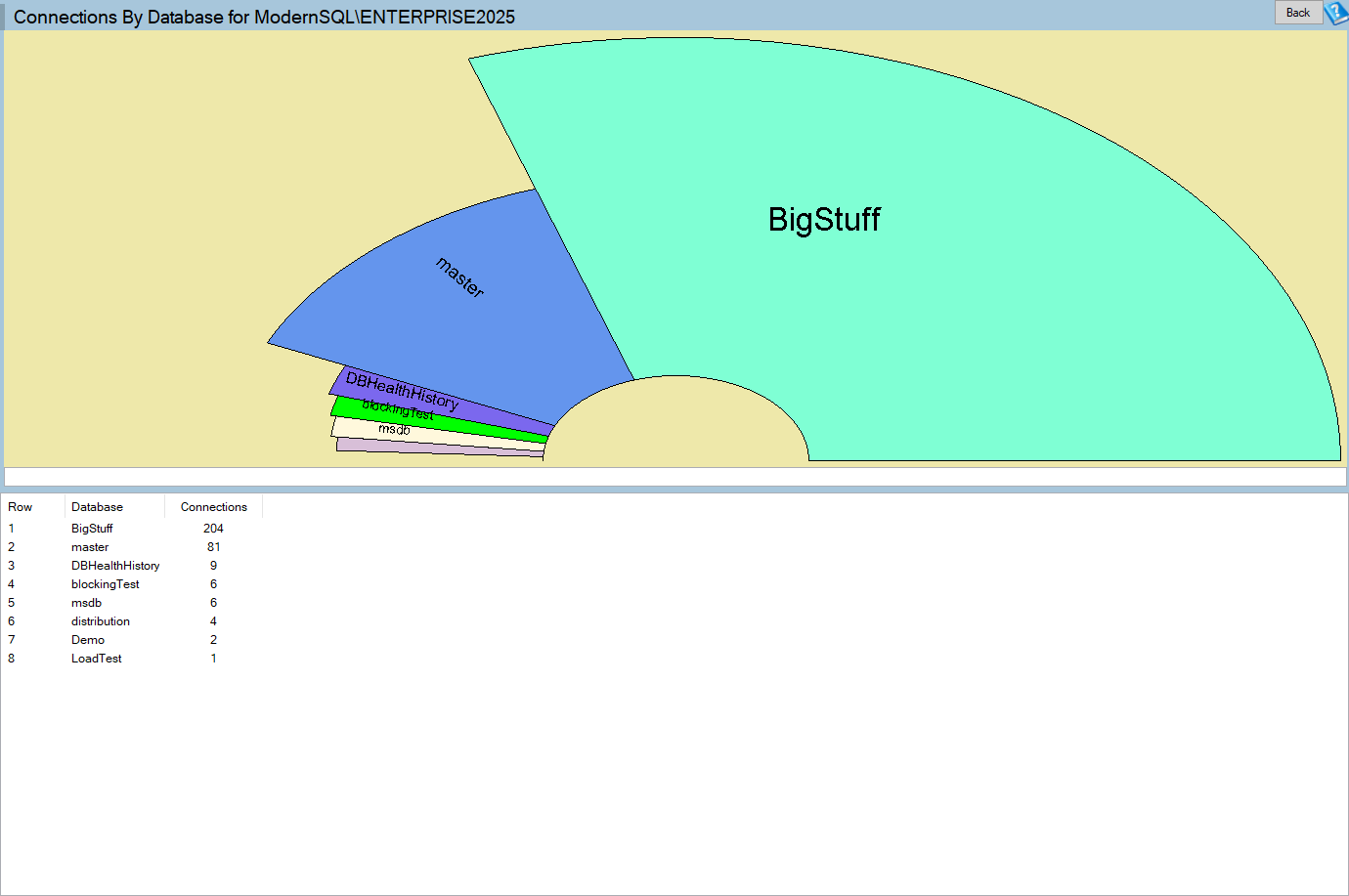
Connections by Database is one of the reports in Database Health Monitor. It runs against your own servers, and it takes about a minute to have this same screen open on one of them.
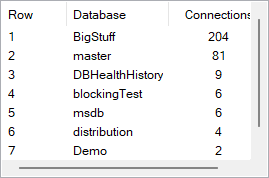
The report is a half pie over a three column grid: a row number, the database, and a connection count, largest first. It counts distinct user sessions only. Session ids of 50 and below are the engine's own, so they are left out, and what remains is applications and people. The full reference is on the Connections by Database help page.
Every slice and every grid row opens the database level Connections report. That is where the individual sessions live, so you go from a shape to a name in one click.
One caveat matters. The database shown is where a connection currently is, not where it does its work. A connection opened against master that runs three part named queries against a user database is counted under master. Keep that in mind when a row appears for a database nobody believes anything connects to.
Four patterns worth recognizing
- A pool at exactly its maximum. The application has hit its limit, and new requests queue before they ever reach SQL Server. The instance looks quiet while the application looks slow.
- A count that climbs steadily for one database. Connections are not going back to the pool, usually because of an unclosed connection in a code path that only runs now and then.
- A large
masterslice. Connection strings with no database named inherit the login default. Harmless, but it understates the counts for the real databases. - Many databases with one or two connections each. Normal on a shared instance, and normal for monitoring tools, which connect to everything.
A pool that has outgrown its expected size is more often an application holding connections through a slow call than an application under load. That distinction changes who you call and what you ask them to fix.
Remember this is a snapshot. It shows the moment it ran, so it cannot say whether a count is climbing. For that, use the Connections panel on the Server Overview, which plots the same number over time.
What the sessions are doing once you find them is a separate question. Memory pressure can produce a similar sense of an instance in trouble, and SQL Server Memory Usage: Where Did All the RAM Go? is a good companion read when the connections look innocent.
The cost of skipping this step is real. Teams restart application servers, raise pool limits, or add hardware, all to treat a total that one grouped count would have explained.
What to check on your own server
- Open the connections split and compare the largest database with what you know the applications should use
- Check whether any database sits at a round, suspiciously constant connection count that looks like a pool maximum
- Look at the master slice and trace extra connections to connection strings with no Initial Catalog
- Open the session list for the database in question and see who connects, from where, and whether they are active
Try Database Health Monitor Today
Turns a connection count that jumped for no obvious reason into a named database, so the application holding the connections can be found in a minute. Database Health Monitor shows it on every instance you connect, in the time it takes to open the report.
Download Database Health Monitor and run the Connections by Database report against your own server. There is nothing to configure first, and you will know inside a few minutes whether it tells you something you did not already know.