
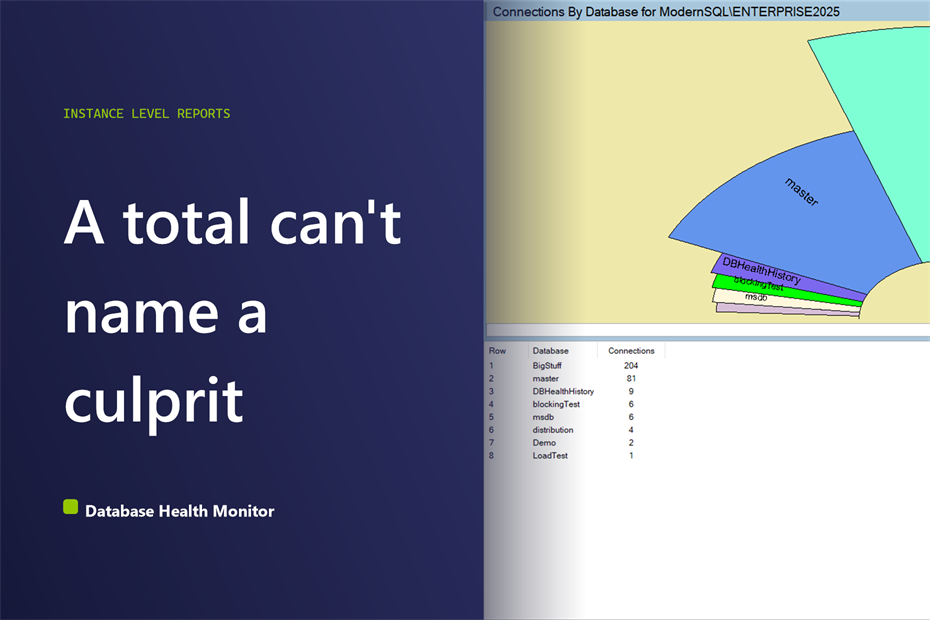
The connection count doubled since last month and nobody admits to changing anything. We see this at shop after shop. One person points at a dashboard, another insists the application is fine, and the argument runs for days because nobody can say whose connections they are. Splitting SQL Server connections by database ends it.
How do I see SQL Server connections by database and find which application is behind a jump? To see SQL Server connections by database, group the current user sessions, those with a session id above 50, by the database each one is pointed at. The largest group usually names the application behind a jump in the total. A pool at its maximum or a steadily climbing count points to the cause.
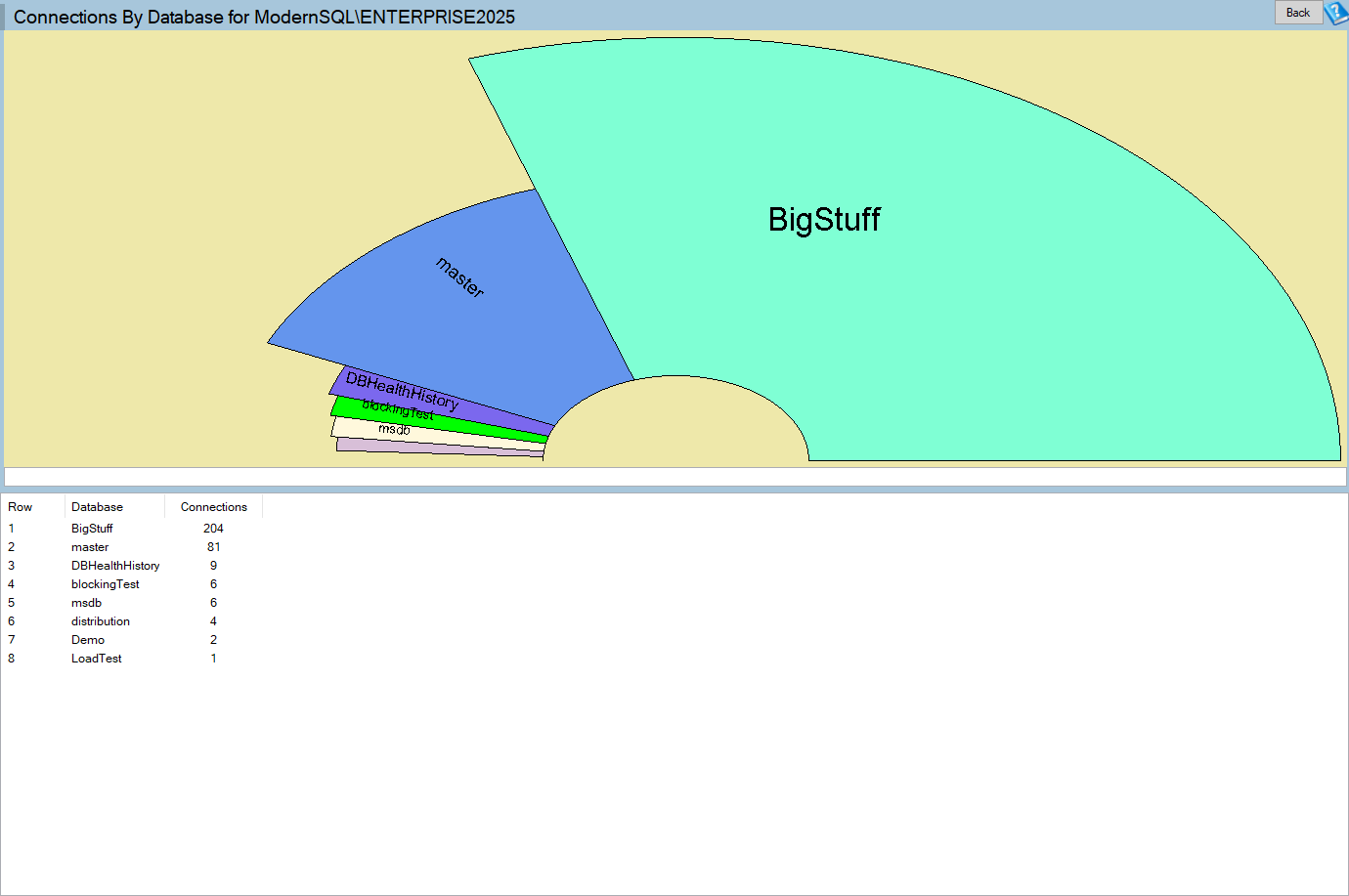
Database Health Monitor has a report built for exactly this moment, called Connections by Database. It is a half pie over a short grid, and it shows where the current sessions are pointed. First, why the usual approach fails.
Connections by Database is one of the reports in Database Health Monitor. It runs against your own servers, and it takes about a minute to have this same screen open on one of them.
The total is the wrong number to chase
The total is the sum of every pool on every application server. Fifty connections could be one busy service or ten idle ones, and the number cannot say which. A pool holds its connections open whether or not anyone is using them, so one connection does not mean one user.
Most people reach for sysprocesses or a session list and start scrolling. That is fine for a dozen rows. On a shared instance it is hundreds, and the pattern only appears once you group them. Worse, the pain is often invisible from the server side. A pool sitting at its limit makes the application slow while the instance looks quiet, because the requests are queueing before they ever arrive.
It is the same trap we describe in Why SQL Server CPU Pressure Isn't What Task Manager Shows: a headline figure that sounds like the answer and is not.
SQL Server connections by database, one slice at a time
The honest measure is how many sessions each database holds right now. The report plots exactly that, with a three column grid beside it: a row number, the database, and the connection count, largest first. Click a slice or double-click a row and you land on the database level Connections report, where the individual sessions live. The Connections by Database documentation covers the full reference.
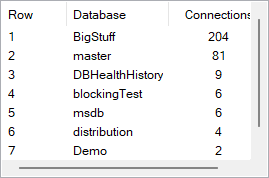
Two cautions before you trust a slice. The database shown is where a connection currently sits, not where it does its work. A session opened in master that then queries a user database with three-part names is filed under master, and so is any connection whose string names no database at all. And the report is a snapshot of one moment. For a count that is climbing, the Connections panel on the Server Overview shows the same figure over time.
What the slices are telling you
Start with the largest slice and hold it against what you know. Then look for any database with far more connections than its application should need. A pool that has outgrown its expected size usually means a slow call is holding connections open, not that the application is under load.
| What you see | What it usually means |
|---|---|
| A pool at exactly its maximum | The application is at its limit and new requests queue before reaching SQL Server. |
| A count climbing for one database | Connections are not returned to the pool, often an unclosed connection on a rarely used code path. |
A large master slice | Connection strings with no database named. Harmless, but real database counts are understated. |
| Many databases with one or two each | Normal on a shared instance, and normal for monitoring tools that connect to everything. |
The cost of getting this wrong is rarely a crash. It is weeks of a slow application blamed on indexes, storage or the network, with a developer and a DBA each sure the other side is at fault. A leak found in an afternoon is cheap. A leak found after a pool exhausts at month end is not.
Once a database looks wrong, open its sessions and see who, from where, and whether they are doing anything. If the connections seem to be piling up behind each other, the Blocking Tree is the next stop, and What is Active shows what those sessions are running right now.
What to check on your own server
- Compare the largest database slice with what you know about the applications that should be connecting to it
- Count the sessions sitting in master and look for connection strings with no Initial Catalog
- Open the session list for any database holding far more connections than expected, and note who and from where
- Watch the connections figure over several days to tell a climbing count from a steady one
Try Database Health Monitor Today
The Connections by Database report turns an unexplained jump in the instance connection count into a named database, and from there a named application. Database Health Monitor shows it on every instance you connect, in the time it takes to open the report.
Download Database Health Monitor and run the Connections by Database report against your own server. There is nothing to configure first, and you will know inside a few minutes whether it tells you something you did not already know.