
You have the report open and a handful of colored bars in front of you. Somebody asked whether a shared dataset can be deleted, or whether a change to one is safe, and you have about a minute to answer. Where do your eyes go? Most people go straight to the tallest bar. That is the wrong place. In Database Health Monitor, the SSRS shared dataset page rewards a different order, and the first stop is a single line of text that is easy to read past.
How do I read an SSRS shared dataset report to find broken and unused datasets? Read the line under the headline of an SSRS shared dataset report first, because it names reports that point at a deleted dataset and cannot run. Then scan the chart colors: red means a deleted data source, amber means nothing references the dataset. Finally check the Used by count before you change or delete anything.
In this post
- The question this screen is built to answer
- Reading the SSRS shared dataset page top down
- The chart is a triage board
- The grid, in the order to read it
- What a healthy reading looks like
- What a reading that needs action looks like
- Where the drill down leads
The question this screen is built to answer
A shared dataset is a query published once so that many reports can use the same definition of the same data. It is a good idea. It is also the part of a report server where we see people go wrong in two opposite directions, on engagement after engagement.
One direction is the dataset nothing uses. It sits in a folder, nobody remembers why, and nobody will delete it because nobody can prove it is safe. The other direction is the dataset that thirty reports use. Nobody will touch that one either, because a small edit to its query lands in thirty places at once.
Both are a cost. The first is clutter and a slow loss of trust in the catalog. The second is change that stops happening, so a column that should have been fixed in the spring is still wrong in the fall. The page puts a count and a name against each one, so the argument becomes a lookup.
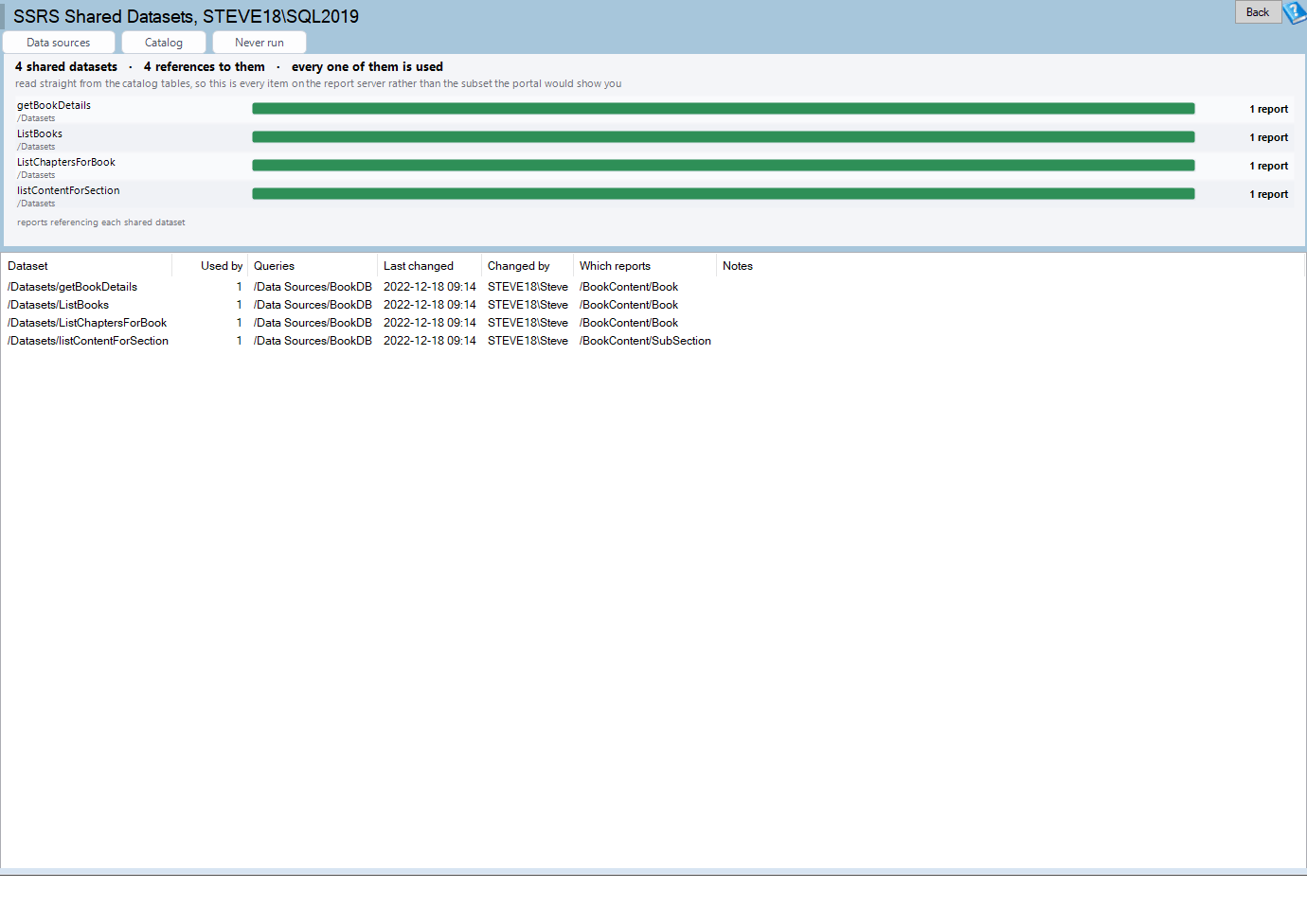
SSRS Shared Datasets is one of the reports in Database Health Monitor. It runs against your own servers, and it takes about a minute to have this same screen open on one of them.
It only appears for a database that holds a Reporting Services catalog. That means dbo.ExecutionLog and dbo.Catalog both exist, and your login can SELECT from dbo.Catalog, dbo.Users, dbo.DataSource and dbo.DataSets. In the tree, look under Real Time > SSRS > Shared Datasets.
Reading the SSRS shared dataset page top down
Start with the headline. It counts the shared datasets and the references to them, one for each report that uses a dataset. Then it says either how many are unused or that every one is used. That is context, and it is worth a glance. It is not the finding.
The finding is the line beneath it. When any report references a shared dataset that has since been deleted, that line names the first three by path and says "and others" past that. Each report appears once, however many of its references are broken.
Why does that outrank every bar on the chart? Because that report cannot run, and nothing about it looks wrong. It sits in its folder with a normal name and a normal icon. The first person to learn it is broken is the one who opens it on the morning it matters.
There is a second reason these reports get named in text and not drawn. The grid lists datasets, and the dataset they point at is gone. There is no row to attach them to. If you only ever scan the grid, you will never see them at all.
The same line adds other items when they apply: datasets whose shared data source was deleted, the dataset most reports depend on, and datasets that carry an embedded connection instead of a shared one. Read all of it. It is short.
The chart is a triage board

One bar per dataset, longest first. The folder is printed under each name and the count of reports sits at the right edge, or the word unused. Length tells you how widely a dataset is relied on. Color tells you whether something is wrong, and color is the part to read.
- Green means the dataset is referenced and its data source still exists.
- Amber with an amber outline means no report references it.
- Red with an amber outline means the shared data source it queries has been deleted, so the dataset cannot run and neither can any report built on it.
The chart draws at most thirteen bars. When there are more, a note beneath says how many are shown out of how many, and the grid keeps the full set. Hover on a bar for the path, the data source, the reports that use it, who changed it last and when.
The grid, in the order to read it

Resist reading left to right out of habit. A better order is below.
| Order | Column | What to take from it |
|---|---|---|
| 1 | Used by | The number of different reports that reference the dataset. A report that builds two of its own datasets on one shared dataset counts once, so the figure is not inflated. |
| 2 | Notes | The page's own remark: unused, a change here reaches this many reports, data source gone, embedded data source, or hidden from the portal. |
| 3 | Queries | The shared data source path, or (data source deleted), or (embedded data source). |
| 4 | Which reports | Up to three report paths. Past three, the first two plus a count of the rest. |
| 5 | Last changed, Changed by | How stale the definition is, and who to ask. |
Used by is a plain number, so the column sorts numerically. That sounds minor until you click it. One sort puts your zeros together and your widest dependencies together, and those are the two groups you came for.
What a healthy reading looks like
The headline says every dataset is used. There is no second line about missing datasets or deleted data sources. Every bar is green. The datasets with a handful of reports are ordinary shared infrastructure, and the one at the top is a known quantity that people already treat with care.
Even then, read the notes. A dataset flagged as reaching more than five reports is not a problem. It is a warning label, and a good one to have before somebody edits a query on a Friday.
An embedded data source is worth a second look as well. The dataset defines its own connection rather than pointing at a shared one, so that connection now lives in two places. Nothing is broken today. It will be the first thing that drifts when a server is renamed.
What a reading that needs action looks like
Three readings need a response, and they differ in urgency.
Reports named under the headline. This is the urgent one. These reports are failing for whoever opens them. The report server sets LinkID to NULL when it deletes a dataset, and stores NULL for a reference it could not resolve at publish time. Either way the row in dbo.DataSets has nothing to join to. Send the list to the owners and decide whether to republish or retire.
Red bars. The dataset still exists but its shared data source does not. The report server leaves a Link that names a missing item, or a NULL Link with the 0x2 bit of Flags clear. Reports on it fail the same way, so treat a red bar as a second wave of the first problem.
Amber bars. Nothing references the dataset at the moment the page loaded. This is a count of references, not of runs, so it does not depend on how long the execution log is kept. It is also a point in time. If somebody published a report a minute ago, press F5 before you delete anything.
There is one limit to be honest about. A dataset with a single referencing report that has not run in a year still shows as used. The page counts references, not usage. Take that report to the Never Run page before deciding the dataset is alive.
If the same server also has a catalog that has grown beyond reason, our post What's Really Driving Your ReportServer Database Size covers the storage side, which is a separate question from this one.
Where the drill down leads
Click a bar to select its grid row. Double click it, or right click and choose Go to its data source, to open SSRS Data Sources with that dataset's connection selected. That is the move for a red bar: you land on the missing or misconfigured connection, not on a list to search.
A right click on a row offers the rest of the useful shortcuts:
- Copy the dataset path for a ticket or a script.
- Copy the reports that use it puts every referencing report path on the clipboard, one per line. That is your notification list.
- Copy the data source it queries when the dataset uses a shared one.
- This dataset in the catalog opens SSRS Catalog Inventory with the dataset selected.
The toolbar adds Data sources, Catalog and Never run buttons for the same hops. The full column and message reference is in the SSRS Shared Datasets documentation.
One note on how it reads. The page pulls from the catalog tables directly, at READ UNCOMMITTED, so it does not hold locks that get in the report server's way. It also shows every item on the server, not only the subset a portal user would see. If the catalog has no DataSets table, the page says the server does not keep a record of which reports use which shared dataset, and does not try to run a query that would fail.
What to check on your own server
- Open the report against your ReportServer database and read the line under the headline before anything else
- Note every report named as referencing a dataset that no longer exists, and tell its owner
- Sort the grid by Used by and list every dataset showing unused
- Check the referencing reports of any dataset used by one report against a never-run list before calling it live
- Copy the reports that use your most shared dataset before changing its query
Try Database Health Monitor Today
Database Health Monitor shows which reports depend on each shared dataset, which datasets nothing uses, and which reports already point at a dataset that was deleted. Database Health Monitor shows it on every instance you connect, in the time it takes to open the report.
Download Database Health Monitor and run the SSRS Shared Datasets report against your own server. There is nothing to configure first, and you will know inside a few minutes whether it tells you something you did not already know.
Related reading: Master Database Size: Read This Row Before the Megabytes. This walkthrough shows how to read the master Footprint page in order, starting with the one row that tells you whether a large master is holding somebody's data.