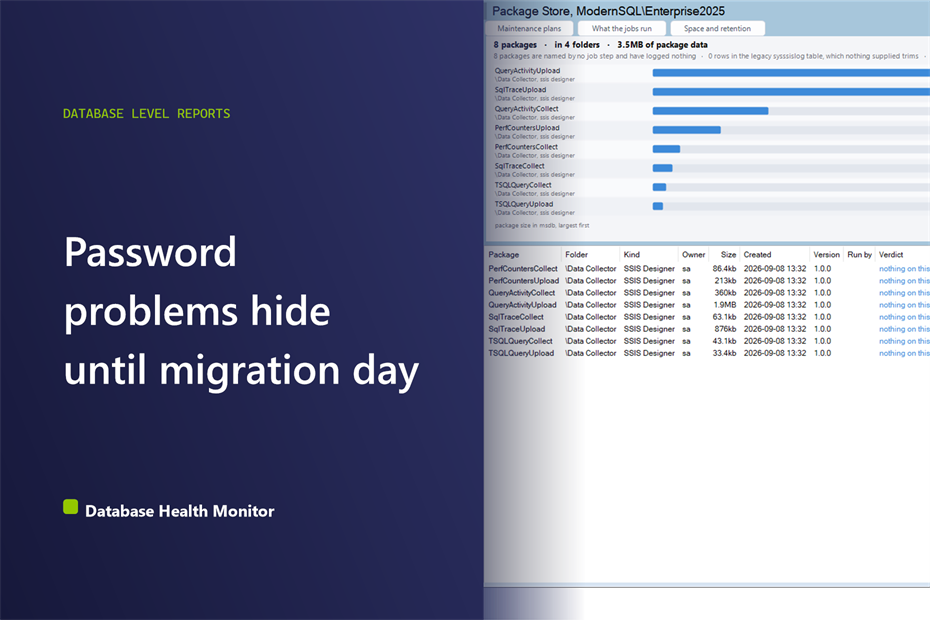
Across a lot of migration weekends, the same call comes in at the worst possible hour. The cutover has been scripted and tested twice, the change window is half gone, and then one SQL Server Agent job refuses to run, because the package behind it turns out to be a password protected SSIS package that nobody currently on the team can open. The Integration Services catalog was checked before the weekend even started. The file share was checked too. The package was not sitting in either place, because it never had been.
How do I find a password protected SSIS package before I migrate a SQL Server instance? A password protected SSIS package lives inside msdb's 'sysssispackages' table, invisible to anything that only checks the SSIS Catalog or the file system. Before a migration weekend, query 'sysssispackages' directly and check the 'encryptionlevel' column on every row, because a package that needs a password cannot be opened, exported, or redeployed without it.
Database Health Monitor calls this screen the Package Store report, and it exists for exactly that blind spot. 'msdb' has quietly held its own package table since SQL Server 2005, long before the modern Integration Services catalog existed, and on any instance that has been upgraded rather than rebuilt since then, that old table is often still where the real packages sit, whatever the newer tooling shows.
Why the catalog and the file share aren't the whole story
Packages can live in three places: the Integration Services catalog, the file system, and this table inside 'msdb', which is the oldest of the three by a wide margin. Most inventories stop at the first two, because that is where deployment tooling and current documentation both point. The table gets skipped, not because anyone decided it did not matter, but because nothing in a modern SSIS setup ever reads from it anymore. It just sits there, growing one deployment at a time, on every server that has been upgraded through enough SQL Server versions to have kept it around.
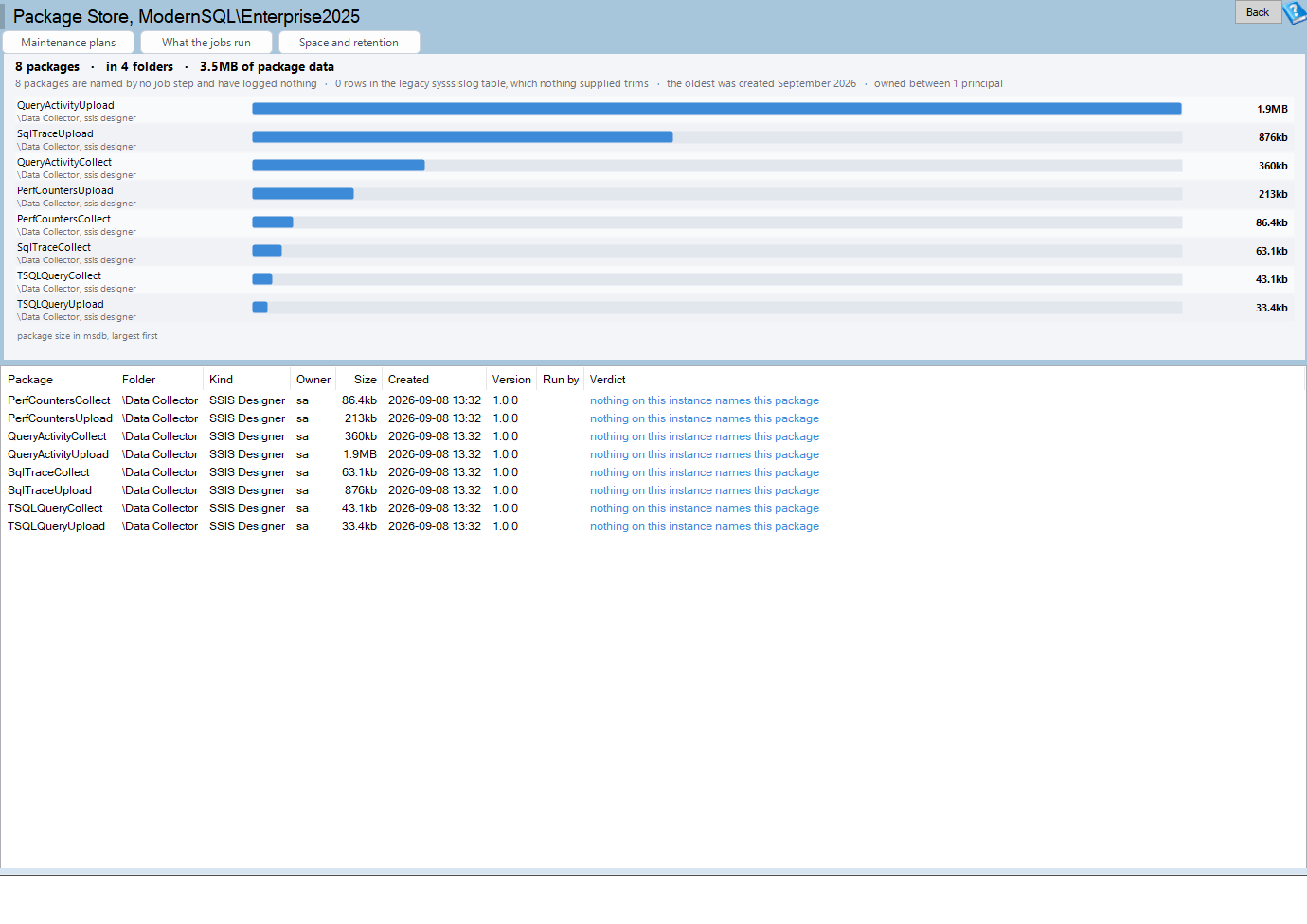
Package Store is one of the reports in Database Health Monitor. It runs against your own servers, and it takes about a minute to have this same screen open on one of them.
What actually gets measured instead of a simple count
A raw row count from 'sysssispackages' is not a useful number on its own. The table only tracks a parent id per row, so something buried four folders deep reads as if it sits at the root, right up until each layer gets walked and stitched back together. This report does that walk once and keeps the result. It also splits packages by kind, separating a true SSIS package from a legacy DTS package and from 'packagetype 6', which is really a maintenance plan wearing a package's clothing. Skip that split, and an instance running four maintenance plans looks, on paper, like it is running four SSIS workloads it never touches.
The report also checks who actually calls each package, by comparing the SSIS step commands in 'sysjobsteps' against every package name. A blank result there is not proof of anything by itself. It usually means one of two things: a deployment that never got wired to a job, or a package that is triggered from outside SQL Server entirely, by a scheduler or a person. The report will not guess which one it is, and neither should you.
The grid also carries the owner and the version behind each package, and both matter more during a migration than they do on an ordinary day. The owner is often the fastest route back to whoever set a password in the first place, assuming they are still around to ask. The version numbers matter too, because a package built against an old provider or an old connection manager will not necessarily behave the same way once it lands on a newer instance.
Spotting a password protected SSIS package before migration day
Password protection on a package is invisible until somebody actually tries to move it. Export it, redeploy it, open it in a designer, anything that touches the package body, and the password is the first thing asked for. The 'encryptionlevel' column in 'sysssispackages' is what tells you this ahead of time, on an ordinary Tuesday, rather than at two in the morning during a cutover window, when the person who set that password five years ago has since left the company.

Reading the chart, and why size beats a count
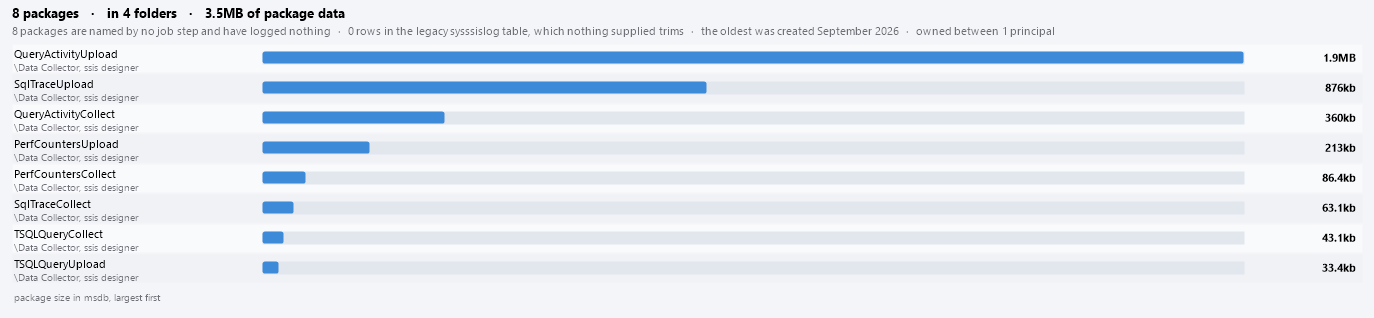
The chart side of the report ranks packages by size rather than by how many there are, because the package XML is what actually takes up room in 'msdb'. A folder holding one large legacy package can weigh more than a dozen small ones put together, and a count would never show that. The folder and the kind sit under each package's name in the label, for the same reason the grid rebuilds the folder path in the first place: a parent id on its own tells you nothing. That size adds up the same way any other table's growth does, and it is worth tracking the same way, using something like How to Track SQL Server Table Size Before It Surprises You.
What this changes about the next migration
None of this replaces an Integration Services catalog inventory; it fills the gap sitting next to it. Once the 'msdb' package store has been walked, the maintenance plans pulled out from the real SSIS and DTS packages, and every password protected row flagged ahead of time, a migration plan stops depending on anyone's memory of a password from years ago. The full column-by-column reference lives in the Package Store documentation, next to the Maintenance Plans and Job Commands reports it points to from its own toolbar.
What to check on your own server
- Query msdb.dbo.sysssispackages, or sysdtspackages90 on SQL Server 2005, to see what is actually stored there
- Separate packagetype 6 rows from the real SSIS and DTS packages before quoting a count
- Check the encryptionlevel on every package before scheduling a migration weekend
- Compare each package name against sysjobsteps to see which ones an Agent job actually runs
Try Database Health Monitor Today
It finds every package still sitting in msdb, including the ones locked behind a password nobody wrote down, before they surprise you during a migration. Database Health Monitor shows it on every instance you connect, in the time it takes to open the report.
Download Database Health Monitor and run the Package Store report against your own server. There is nothing to configure first, and you will know inside a few minutes whether it tells you something you did not already know.
Related reading: How to Find Offline Database Files in SQL Server. A companion post walks through the master File Map report, the one screen in Database Health Monitor that still lists a database's files, growth settings, and volumes even when that database is offline, restoring, recovery pending, or suspect.