
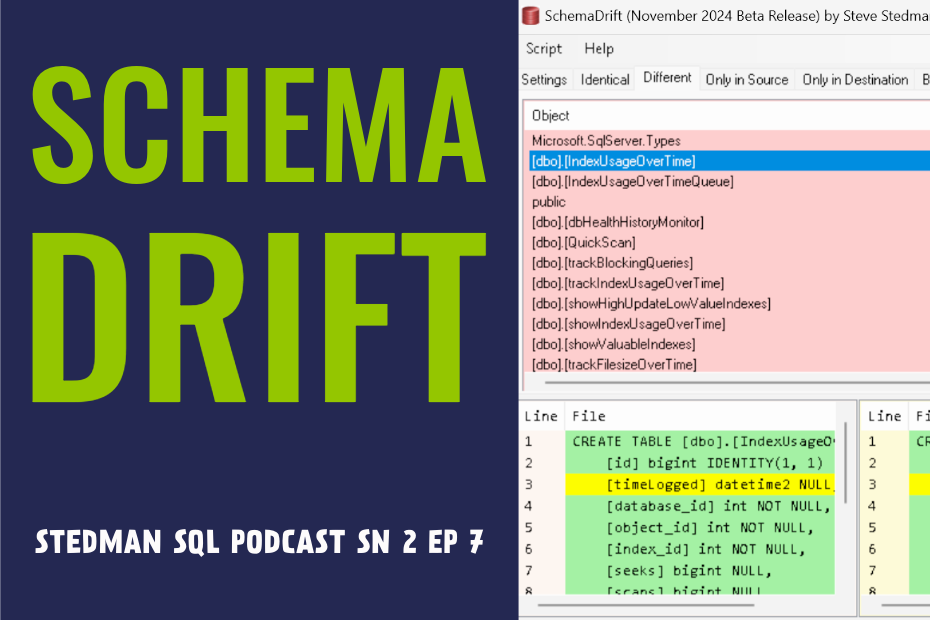
- Host Steve Stedman
- Recording Date: February 26, 2025
- Topic: Comparing Database Schema with Schema Drift
- To download Database Health Monitor click here: Databasehealth.com/download2
- Schema Drift tool: Shemadrift.com
Stedman SQL Podcast Sn 2 Ep 7 Comparing Database Schema with Schema Drift
This week, Steve Stedman introduces the latest release of Database Health Monitor, featuring significant updates to the Schema Drift tool. Originally developed in 2015, Schema Drift allows users to compare schema objects across databases, including tables, triggers, and stored procedures. After facing challenges with SQL Server Management Objects (SMO), the tool was completely rewritten in 2024 to eliminate SMO dependency, resulting in improved stability and faster performance. Stedman demonstrates its powerful functionality, showcasing how it detects database differences, facilitates object migration, and exports comparison results to Excel—ideal for client presentations. Schema Drift is available for free within Database Health Monitor or as a standalone tool at schemadrift.com. This step by step instructional podcast, is an episode you won’t want to miss.
Podcast Transcript
Steve Stedman 00:00
Welcome everyone to the Stedman SQL Server podcast. It’s season two, and this is Episode Seven. I’m your host, Steve Stedman, I’ll start with some news with Stedman solutions, we had a recent release of the Database Health Monitor program with several new features, and one of them was updates to the Schema Drift program, which is now included with Database Health Monitor, and it’s something that we’re going to be talking about on today’s podcast.
So, I’d like to start by welcoming all of our listeners to the podcast. Last week, we discussed database corruption and how to be prepared for that. If you missed that episode, you can find it on YouTube or on Spotify, and this week’s topic is Schema Drift.
So first off, Schema Drift is a tool that I’ve built for comparing schema between different databases. And what does it compare? Well, it compares all of the different schema objects that you may have in your database, things like tables, triggers, users, rules, roles, partition functions, primary keys, foreign keys, functions, stored procedures, everything that you’ve got in your database that can be changed over time. So a little bit of background on the history of this. This is something I’m going to click on my beta notes here, because technically, the Schema Drift is still in a beta I started on this in late 2015 and early 2016 February 2016 which is, gosh, nine years ago, I had the initial beta release of this, and then I did some updates over the next several weeks. And then eventually, by June, we’d done another beta release. And then after getting that release out, we started having some issues. And the issues were, I was using the SQL Server SMO objects, which are some com objects that you can use to be able to talk to the database. And it’s the kind of stuff that’s used inside of SQL Server Management Studio in order to display things. But what I found was, depending on the different versions of SQL Server, different management studios, whether they had Management Studio installed or not, things like that. We ran into a lot of issues with the SML objects, and I don’t know if it was just that I was using them wrong, and maybe I don’t want to bash on them that way, but Schema Drift got really, really difficult to use in a lot of environments that didn’t have the right SMO objects installed or available.
So kind of tabled the project for a bit, and then in 2021 came back and started working on it again. And in order to revitalize the project, I updated to the new SMO objects and got the project going again. Well, then it turned out we had the same problem with the SMO objects not always being there, not being the version we expected, and all that kind of stuff. So in 2024 of October, a few months ago, we started out with a complete rewrite of all the different scripts and eliminating the need for the SMO objects. And then through November and December, we’ve got more developers besides just me on it now, Mitchell helped out with us some as well, and we went into internal testing and preparation for beta. And we started beta in December, and then in January, we had our first real, official beta loop release of this found a few bugs with that, and we’re improving them. And then this last updated database health that just came out a week or so ago has the latest beta release of Schema Drift as well, or you can download it independently at Schema Drift.com but the idea is things are way faster and way more stable than they were before, and we have total control over how we’re doing the differences, because we threw out the use of those SMO objects and did everything as T SQL to find and list and show how we’re doing the differences on all the different tables and databases and things.
So that’s a little bit of history. Let’s check in. Jump into a demo here of how we could use it. So let’s say we’re going to connect to a SQL Server, and in this case, I’ve already connected to multi SQL, SQL 2022, but you can just hit Connect, put in your database name, and I’m going to connect to a SQL Server here. And in here, I’m just going to go, you know, I didn’t prepare this at a time. I’m going to go try this and see what I find. But I’m going to click on the DB health history database, and then I’m going to go connect to a different SQL Server. And this multi SQL, I’ve got a bunch of developer instances installed. I’m going to go connect the SQL 2008 I think I have there, put in my essay password, and we’re going to compare the database health history. Now the reason I’m doing this one is I know that there’s different features in Database Health Monitor that were not implemented or didn’t work in SQL Server 2008 there’s a few of them that are only available on newer versions of SQL Server. But what I’m going to do is I’m going to go compare those databases and see what I can find that’s different, and all these check boxes down below. It’s going to compare all those things. I’m going to ignore fill factor on indexes, because it seems like those always end up being a little bit different. And I’m going to ignore white space differences, meaning if there’s an extra carriage return or a couple extra spaces here and there, I don’t really worry about those too much. And then we also have another option here to ignore merge replication differences, because when you use merge replication, it puts a whole lot of objects in your database. And if you’re using merge replication, generally, you don’t want to know about those objects when you’re diffing, because they’re sort of system objects. System objects rather than actual real user objects you’re taking a look at.
So I’m going to hit compare, and it’s going to go through and compare the state database, health history database between these two different SQL servers, compared all of those objects that we have down below there. So we go and look. We now have the identical tab we can click on and we can see that, oh, here’s the disk latency table, and it’s exactly the same because it’s on the identical between both of them. The disk space table is the same. Primary Keys are the same, and these are all the things that are the same between these two different databases. But then what’s different? And there’s different levels of different here, meaning different means it actually exists in both locations, and it’s different for some reason. So here’s an example, depending on the SQL Server version, we have our alert config, and it’s a date time on older version of SQL Server, and it’s a date time too on a newer version of SQL Server. Now this is our development environment. I want to go talk to the developer on that find out if on that find out if that was intended or if that was just something that happens to be remnant, leftover of our test environment that we’re working on here. But when we go look and see, here’s some disk usage over time. It has Date Time and Date Time too as well. Index usage over time, date time and date time too as well. Interesting. So come some of the common things showing up there, and we can see the primary key constraint is actually not an actual named one, and came in with one of these big numbers in the key. That’s what we’re seeing. That’s different there. And we can go through and say, Okay, well, here’s a stored procedure. We can scroll down and say, Okay, what’s different? Well, what’s different is that the in the latest version of database health, we switched what server database health is talking to when it sends updates. Oh, send quick scan. No, that’s not actually part of database health on it. That’s part of our daily checkup. We changed the server used to send a database health.com now sends to Stedman solutions.com and we’re seeing that as a diff that showing up between these two databases because they both haven’t been updated to the same code level. Okay, that’s how we can go see the diffs of what’s different between objects in your database. But we can also go and see that there are some objects that are only in the source and like check Table history, or corrupt table repair list. Oh, that was from a corruption repair work I was doing. Oh, you know what? There is some replication stuff showing up in there. If we go back and turn on, ignore the replication differences and do the compare again, and we go look at now those replication related ones are gone, but we can see that here are things that only exist in the source this Issue Details. That’s a table that only exists on one side. If we wanted to take that and move it over to the other, it would be as easy as right clicking and say, add this table to the other database, and it’s now been added to the other database. If we do the deep diff again, compare it should now. I don’t remember what the name of it was, but it should now be showing up in the identical list, rather than the only in Source List. This is handy to be able to go through when you’re working, like getting ready to deploy code from a test environment to a production environment, or from dev to test, or things like that, we’ll go and find out, well, what’s different between these different databases.
Now there’s another way that we can use this as well. That’s how we can just simply compare two databases. Let’s say we want to go, and I’m going to go here and pick, I don’t know, Northland, a sample database we’ve got there here, I’m going to connect up to the same SQL Server, rather than a different one, back to multi SQL, SQL 2022, my test server. And I’m going to compare North wind to a database I’ve set up called div five. And I think diff five is just an empty database. And I’m going to run the compare, and let’s say I want to migrate all the scripts from north wind. Well, let’s take a look here. Well, the things that are identical. There’s some default schema, some roles and user permissions for what I’m looking at here in this demo. I don’t really care too much about those, so I’m going to turn off a. Assemblies, roles, user permissions and schemas, and then do the compare again. There’s nothing that’s the same. So then now we’re looking at there’s nothing different, because there’s it’s comparing a full database to an empty database. And here we’re going to only in source. All these are now. These are everything that’s in the north wind database that doesn’t exist in this new empty database. So we can go here and click and go say, add this table to the other database, do that one by one, or we could say, copy all scripts. Okay, that’s on the clipboard. Now, then I’m going to open on the same server a new query editor window and paste it. And what we have is a new script that’s intended to be run on this server against database diff five. We use database diff five, and it’s going to go add all of these things. Now let’s just for the fun of it, go make a couple of changes in here to see if we catch those later in the diff. So what if we call this instead of address, we make it address two, and we do something down here on this foreign key employee employees. We’re going to call it employee employees two. And then, I mean, that didn’t change the functionality of it all. And then a non clustered index. Here, I want to make this postal code descending, okay, just a couple of minor changes in there, pretending that like a developer goofed when they were deploying them or something. I know I’ve done that myself. And then we’re going to run that. It now created all of those things in this database called div five. If we jump back to Schema Drift and we go and hit the compare button again to compare them, it now shows most of the stuff is identical because we just deployed an identical copy of it to the other database. But under different we’re seeing there’s that number two, I threw in on the address, on the postal code, there’s the ascending versus descending. And then, for some reason, it missed a foreign key, oh, it says it’s only exists because, well, it’s not an object that’s actually different because the name changed. And it says that the actual employees name changed. So the three differences that we created, one is caused by the object names are the same, and shows is different. The other one is we actually changed the object name, and it shows the source has the original name, the destination has the modified name. And we can see that Schema Drift has caught all of those changes there that were different. Now there’s another thing we can do with this that’s really handy. Is, let’s say we want to put this database into source control, and you’re using Git, GitHub, Bitbucket, whatever your favorite, favorite source control tool is, and you want to be able to take this entire database and put it on disk. Well, what I’m going to do is I’m going to change here and say our destination, rather than going to source control or rather than going to a database, I’m going to say source control or file system. And this temp pubs two. I’m going to change that one because that was that was one I did before. Let’s see I’m going to browse here on this PC. Go to the C drive, go to the temp folder I want to make, and this could be your source control location. I’m going to make a new folder here called North Wind two. I already did a north wind one when I was practicing this demo. I’m going to hit, OK, and then what it’s going to do is it’s going to compare the entire North Wind database to this file system. And there’s nothing that’s the same. There’s nothing that matches, that’s different, that everything is only in source. There’s nothing in destination. So what I can do is right click here and say, Save All to the destination directory. Save complete. I can jump out and go to see temp north. North wind two, and the entire schema has been saved off in these sub directories. So if we want to go and look and say, Okay, let’s look at one of these stored procedures. And here there’s a stored procedure, employee, sales, by country. Let’s just edit that for fun. Sure we’ll open up with SQL Server Management Studio and create procedure. And then let’s just after the as I’m going to put in a comment that’s, you know, well, Doc, it’s going to be created by someone in the past. Not the greatest comment. But then I’m gonna save that file, and after saving it, let’s just pretend that that was a code, that was code that someone else committed and checked in in source control. I then did a git pull, and I got that from someone else’s system. I go and back to compare that database now to that source control, location, do a compare, and we go look at what’s different, and there’s a procedure that’s showing up as different, and what’s showing up for diff is different. I guess it’s quite a bit different based off of carriage returns or something. Let’s go back here and look. I don’t know why it’s showing so many differences there, but the key is, the main difference is, I, oh, I added this comment and it shifted everything down. It’s a horrible procedure, name with a quoted name with spaces in it, but hey, it’s one of the sample demo databases probably testing some specific feature that you can’t actually do that, but now we can see, based off my change, here’s what’s showing up as different between these two, these two stored procedures.
So what’s really cool with this is, when I’m working on a database that I’m regularly making changes to for a client or for myself, or whatever it may be, I always have this fear of, well, what if I accidentally override a story procedure or lose a piece of code? I’m going to go and pull that sort of procedure from backup, will I get the right one? Well, yeah, that can happen. But if you’re regularly using Schema Drift to save it off to source control and then committing that, it’s a great way to be able to go and see in your favorite source control program a history of how things are changing over time. So with this, Schema Drift is great for comparing database to database. It’s great for comparing database to file system. But there’s another handy thing that we came across, and I’m going to just start Excel here, while I’m talking about it, and open a blank workbook. We’re working with a client, and we were trying to help them through a migration, and we’re trying to point out, or call out all of the differences they had between a number of replicated databases. So what we’re able to do is go and compare databases, and I’m going to change this back to not to a file system, but change it back to an actual database. And instead of going against diff five, I’m just going to go and compare it against some other database. Why not my query training database? I don’t remember what’s in that one, but the point is, these are two very different databases that should show a whole lot of diffs in it. What I can do is hit compare and go and see, okay, there’s nothing identical. There’s nothing matched up that’s different, but there’s all these things that are only in source and all these things that are only in destination. What I can do is right click and say, copy all diff only in source and only in destination. Copy that, and now I jump over to Excel. I can then paste it into Excel, size the columns a little bit better. What do we do? This format is a table, I don’t know. We’ll give it that style for fun. And we now have the ability to go through and say, Okay, well, these are all the things that are different between these databases. And I actually built this as a way to help explain to the client, well, this is what’s actually different between your databases. Now it doesn’t actually show the diffs here. It just shows that these are all the objects that are indeed different, and whether it’s only in the source or only in the destination, or whether it’s the same and different. Using this to export to Excel and then be able to use it in a meeting with a client. Was a really great way to be able to show them that, yes, indeed, you have a great deal of differences in these databases that are assumed to be the same.
So that’s kind of the overall demo of Schema Drift. It’s something that’s free is Database Health Monitor. I’ll stop sharing my screen. It’s installed and available with Database Health Monitor. Or you can go to Schema Drift.com to download an independent version of this well. But I guess overall, that kind of wraps up my demo of Schema Drift. It’s something I started on abandoned, and then late last year, completely revamped the whole thing. And I really lost faith after initially creating it, but after rewriting it all to use straight T SQL and not rely on any third party objects, put me in a position where I’m really happy with this. I use this all the time now. It’s an incredibly valuable tool that you could use for comparing the differences between like Dev and production, or maybe comparing the differences between two different databases that you assume are going to be the same, things like that. Anyway, it’s available for free, and please check it out. Thanks for watching. You can go to SchemaDrift.com to download it and join us next week where Derrick Bovenkamp joins me.
Derrick and I will be working together on analyzing a SQL Server and kind of our first things that we look at when we first jump on a new SQL Server, and how we start out to assess its overall health. Part of what we do with our managed service customers is part of what we do with our health and our performance and overall server health assessment. And it just kind of how do you jump in and take a look at that new SQL server that you may have not looked at before in order to be able to get an idea of how healthy it is, remember that all of our episodes are also available on YouTube and Spotify at short URLs for that are Stedman.us/podcastYouTube or stedman.us/podcastSpotify. Thanks for listening and have a great day. Thanks for watching our video. I’m Steve, and I hope you’ve enjoyed this. Please click the thumbs up if you liked it. And if you want more information, more videos like this, click the subscribe button and hit the bell icon so that you can get notified of future videos that we create.